Download the manual: PDF (English)
Odoo Print & Scan – Manual
Direct print and direct scan from Odoo: Odoo module, Windows app and Mac app
As of 29 November 2026 (protocol 2.3)
The Odoo module is in production use. The Windows app (0.9.14) is not yet digitally signed, the Mac app (1.1.3) is notarised by Apple; sections describing features that are not yet delivered carry a note. All examples use invented companies and people. The Odoo screenshots show invented test data; the Mac app images are renderings of the windows, not screenshots, and partly still show the app's previous working title. Menu and message texts are quoted as the Odoo module currently displays them.
01 Overview and terms
Odoo Print & Scan connects Odoo with the printers and scanners at your workplaces. One click in Odoo prints a document on the right printer without a print dialog. A second click starts the scanner, and the finished PDF is then stored in Odoo exactly where you started the scan.
This manual describes the Odoo module and the apps for Windows and macOS. All examples use invented companies and people. The Odoo screenshots come from a test installation with invented test data; device names and network addresses in them have been replaced. The pictures of the Mac app are renderings of the windows with invented values, not screenshots.
How Odoo Print & Scan works
Odoo Print & Scan consists of two parts:
- the Odoo module on your Odoo server. It manages the paired computers, the assignment of printers to form types and the jobs.
- the app on each computer that is to print or scan directly. It runs as an icon in the Windows taskbar or in the Mac menu bar.
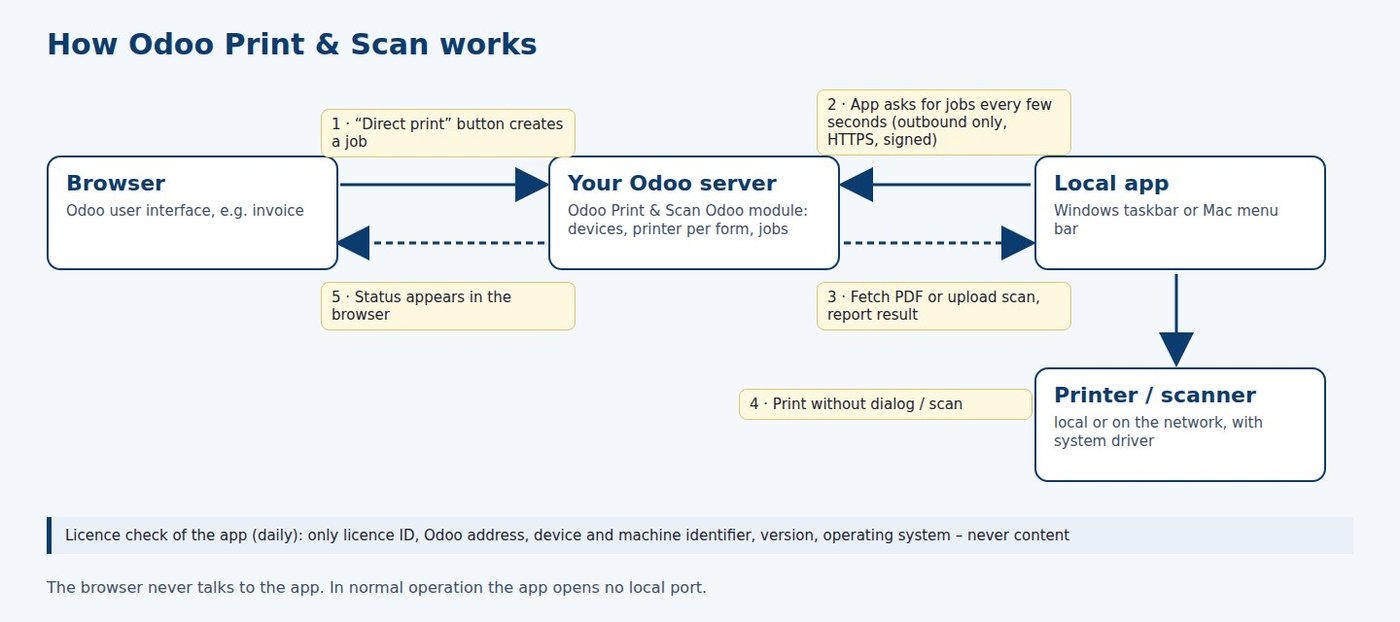
How a job runs:
- You click Direct print or Direct scan in Odoo. Odoo creates a job for your computer.
- Every few seconds the app asks Odoo whether a job is waiting. These requests always start from the app, only over HTTPS and with a signature that only your computer and your Odoo server know.
- For a print job, the app fetches the PDF from Odoo and sends it to the printer without a dialog. For a scan, it controls the scanner and uploads the PDF to Odoo.
- The app reports the result to Odoo. The Odoo page in the browser shows the status, for example "Printed." or "Scan received."
The browser never talks to the app. This is why Odoo Print & Scan also works with Safari, which blocks connections from an HTTPS page to a program on your own computer. In normal operation the app does not open a network port.
How it helps in practice: an example
At "Muster Elektro Handels GmbH", warehouse worker Jonas prints around thirty delivery slips a day. He used to open each PDF, choose the warehouse printer and confirm the print dialog. Now Odoo has a one-time setting that delivery slips go to the printer at the packing station. Jonas clicks Direct print, and seconds later the delivery slip is in the output tray. Invoices from the office still go to the printer with letterhead paper, because there the form type "Invoice" is assigned to a different printer.
Terms
| Term | Meaning |
|---|---|
| Device | A computer with the app that is paired with an Odoo server. In Odoo under Settings → Hardware Bridge → Devices. |
| Pairing | The one-time connection between the app on a computer and an Odoo user on an Odoo server. One app can be paired with several Odoo servers. |
| Owner | The Odoo user who paired the device. Company administrators can share a device with further users. |
| This Workplace | The device your jobs go to if you have several devices. |
| Job | A print or scan that Odoo provides for a device. A job is short-lived: a print must start within two minutes, a scan must be completed within ten minutes. |
| Form type | Kind of document, for example invoice, delivery slip or quotation. The printer and the local PDF storage depend on it. |
| Default printer | The printer that the computer's operating system has set as default. It is used if no printer is assigned in Odoo. |
| PDF storage | Optional copy of printed documents as PDF in a folder on the computer or on the network. |
| Scan copy | Optional copy of a scan in the local folder before it is uploaded to Odoo. |
| Odoo address | The HTTPS address of your Odoo server, e.g. https://odoo.beispiel.de. |
| Licence | Permission to use the app, signed by Biricon and bound to the Odoo address and the computer. |
| Quota | Number of computers that may use a licence. |
| Machine ID | An irreversible identifier of the computer derived from the hardware (32 characters). It binds the licence to the computer. |
Status of the components
This manual describes the functions according to the binding process specification (protocol 2.2). Not everything is finished on every platform yet:
| Component | Status (November 2026) |
|---|---|
| Odoo module for Odoo 19 | in productive use |
| Windows app | being trialled. Tested are sign-in to Odoo, licence check, job flow, silent printing, scanning via the feeder and double-sided, and the per-user installation. The taskbar app working as a whole, the per-computer installation, the Group Policies and the code signature are still being trialled. |
| Mac app | in the test phase. Verified are pairing via link with a click, licence with self-activation, job retrieval, printing and scanning via the flatbed on real hardware, and the evaluation of the configuration profile. Not yet checked or in development are, among other things, pairing without a click, scanning via the feeder and double-sided, local folder storage, the notarised installer and autostart. |
| Linux and Raspberry Pi | planned (see chapter 13) |
| Version 3 (print rules, stations, batches and more) | in development (see chapter 13) |
Sections whose function is not finished yet carry a note in this manual.
Trademark notice
Odoo is a trademark of Odoo S.A. Odoo Print & Scan is a product of Biricon IT Services GmbH, not a product of Odoo S.A., and is neither endorsed nor reviewed by Odoo S.A.
02 Requirements and setup in Odoo
This chapter is for the Odoo administrator. It describes what the Odoo server needs, how the module is set up and who may see and change what.
Requirements
- Odoo 19, Community or Enterprise. The module depends only on the Odoo base modules
base,webandbusand does not need any accounting, inventory or sales modules. - Your own server or Odoo.sh. On Odoo Online (the SaaS version of Odoo) you cannot install your own modules; Odoo Print & Scan cannot be used there. On Odoo.sh it is possible; on small plans with few workers, the polling interval should not be set too short (see below).
- Public HTTPS address. The apps only contact Odoo via
https://and check the certificate against the computer's certificate store. A certificate from your own company CA works if the CA is distributed to the computers. The system parameterweb.base.urlmust contain the public address. - Printers and scanners are set up in the operating system on the computers. On Windows, scanners are addressed via the WIA system interface, on the Mac via ImageCaptureCore.
Installing the module
The module biricon_hardware_bridge is provided by Biricon and, like any custom Odoo module, placed in the addons path and installed. If Biricon carries out the setup, you can skip this step.
Note: As with any module change: install on a test database first, then on production.
Key for the device secrets
Each paired device has its own secret. Odoo stores it encrypted (AES-256-GCM). The key for this is never stored in the database:
- either as the entry
hardware_bridge_key = <32 bytes, urlsafe base64>in the Odoo configuration file, - or the module creates it on first use as a file in the Odoo data directory (
<data_dir>/hardware_bridge/<datenbank>.key, readable only by the Odoo service).
Back up this key separately from the database. If you move the database to another server without the key, all devices must be paired again.
Menu and access rights
All settings are under Settings → Hardware Bridge:
| Menu item | Content |
|---|---|
| Devices | Paired computers with owner, operating system, app version, online state, last seen, pairing method and the Disconnect button |
| Printers per Form Type | Printer per form type (applies to all devices) |
| Printer per Device | Different printers for individual devices |
| Jobs | Log of all print and scan jobs, without document contents |
| Pair Device | Entry of a pairing code (fallback method, chapter 04) |
| Download App | Configuration file hb-config.json with the address of this Odoo server; installers will follow once the apps are released |
Access rights:
- Every user sees their own devices and jobs as well as devices shared with them. They can disconnect their own devices.
- Company administrators (Odoo right Access Rights) see all devices and jobs of the company, can share devices with further users, change the owner and disconnect any device.
- For each job, Odoo additionally checks whether the user may read the document (print) or change it (scan). This check takes place when the job is created and again when it is delivered.
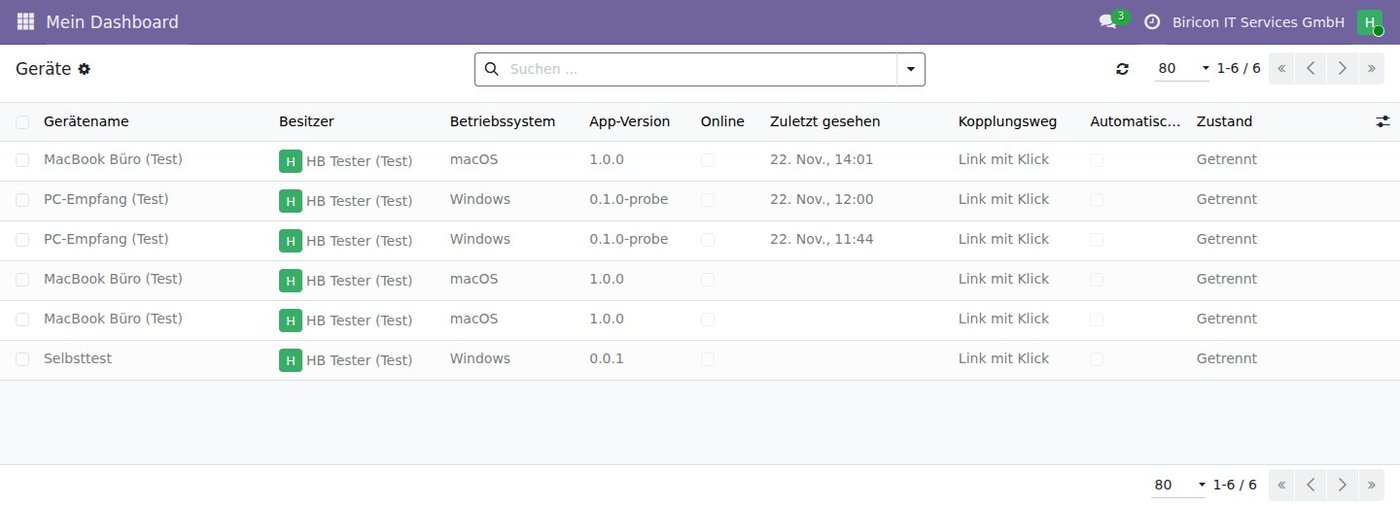
Printers per Form Type
Under Printers per Form Type you specify which form type goes to which printer. The form types are prepared with these fixed keys:
| Form type | Key |
|---|---|
| Invoice | rechnung |
| Credit note | gutschrift |
| Delivery slip | lieferschein |
| Quotation | angebot |
| Sales order | auftrag |
| Purchase order | bestellung |
| Label | etikett |
| Other | sonstiges |
The apps, the registry and the Group Policy templates use the same keys. You may create further form types (keys only from lower-case letters, digits and _).
- Open Settings → Hardware Bridge → Printers per Form Type.
- For the form type you want, enter the printer name exactly as it is named on the computer, for example
HP LaserJet Lageror a Windows share such as\\server\HP 4. OG. Upper and lower case and spaces matter. - Leave the field empty if the default printer of the respective computer is to be used.
- The column Report Available shows whether Odoo has found a matching report for the form type. For Label and Other it can be assigned freely.
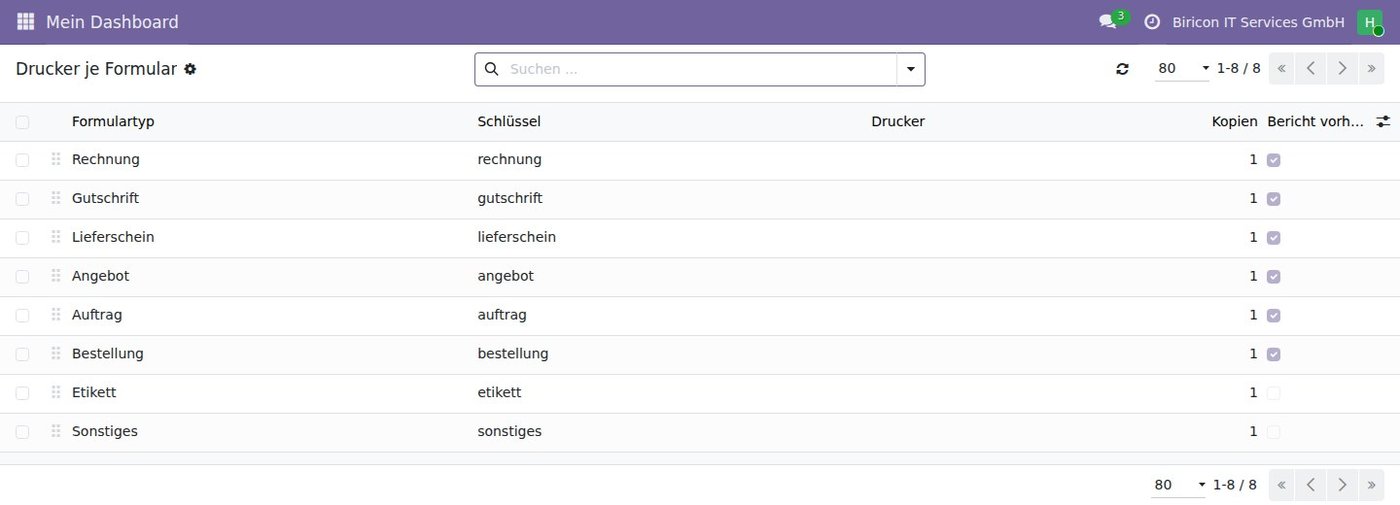
Printer per Device
If individual computers have different printers, you override the assignment per device: under Printer per Device or in the device on the Printer per Form Type tab. One printer is possible per device and form type. The device's Printers and Scanners tab shows which printers and scanners the app has reported; the default printer is marked with (*).
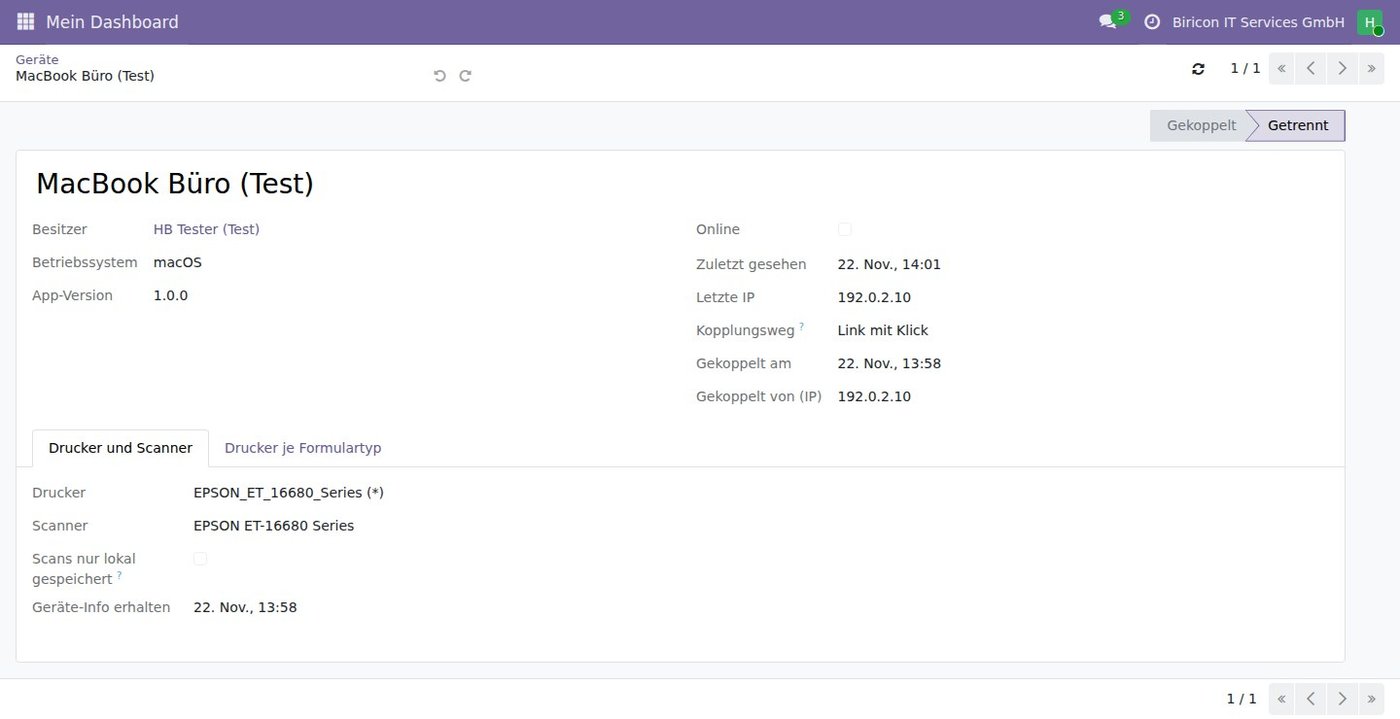
How it helps in practice: an example
At "Kanzlei Beispiel & Partner", all computers print invoices on the printer Kanzlei Briefpapier. Only the computer at reception has its own printer. The administrator Selin enters Kanzlei Briefpapier for "Invoice" under Printers per Form Type, and under Printer per Device the printer Empfang Laser for the reception computer. All other form types stay empty and go to the respective default printer.
This Workplace
If a user has several devices (for example an office PC and a notebook), Odoo asks at the first job: "Which computer should receive the job?". With Remember as "This workplace" the browser remembers the choice. It can be set permanently in the user's own preferences under This Workplace or with the Use as my workplace button on the device. If the user has exactly one device, every job goes there without asking.
Polling interval
The app asks for jobs at an interval set by the server. The system parameter biricon_hardware_bridge.naechster_aufruf_in defines it (default 3 seconds, allowed 0 to 60). With 3 seconds, a job appears on the computer after three seconds at the latest. With many devices and few Odoo workers, a value of 5 to 10 seconds can reduce the load.
Configuration file for the app
Under Download App the file hb-config.json with the address of this Odoo server is available. Place it next to the installer; the app then knows the address at first start and does not ask for it. In company environments, registry values or the configuration profile replace this file (chapter 08).
Note: The installers themselves will only be available there once the apps are released. Until then, test customers receive them directly from Biricon.
03 Installing the app
The app is installed on every computer that is to print or scan directly from Odoo. It does not need its own server or any incoming network connection.
Note on status: The apps are not yet generally released for download. The Windows app is being trialled, the Mac app is in the test phase. For a test phase, you receive the installers directly from Biricon.
Windows
Requirements
- Windows 10 (version 1809 or later) or Windows 11
- Printers and scanners are set up in Windows
- HTTPS connection to the Odoo server; a proxy is taken from the system settings or specified by a setting
Per-user installation (default)
The MSI package installs the app for the signed-in user, without administrator rights: in the user's program folder, with an entry in the Start menu and autostart at Windows sign-in.
- Place the file
hb-config.jsonfrom Odoo (Settings → Hardware Bridge → Download App) in the same folder as the installer. The app then knows the address of your Odoo server. - Start
BiriconHardwareBridge.msiwith a double-click and follow the wizard. - After installation the app starts. At first start, the setup dialog with the Odoo address and the pairing opens (chapter 04). After that, the app stays as an icon in the notification area of the taskbar.
The per-user installation without administrator rights has been tested.
win_einrichtung.jpg
Per-computer installation (software distribution)
Note: The per-computer installation is currently being trialled.
win_msi.jpg
Software distribution via Group Policy ("Computer Configuration") or Intune usually installs per computer. For this, the same MSI can be installed with ALLUSERS=1. The app is then located under Program Files, starts for every user at sign-in, and the supplied defaults are stored under HKLM\SOFTWARE\Biricon\HardwareBridge.
Silent installation and MSI properties
msiexec /i BiriconHardwareBridge.msi /qn BASEURL=https://odoo.beispiel.de AUTOSTART=1 LANGUAGE=de
msiexec /i BiriconHardwareBridge.msi ALLUSERS=1 /qn BASEURL=https://odoo.beispiel.de AUTOACTIVATE=1| Property | Effect | Registry value (installation default) |
|---|---|---|
BASEURL | Address of the Odoo server, https:// only | Servers\1\BaseUrl |
AUTOSTART | 1 = start with Windows sign-in (default), 0 = do not | Autostart |
LANGUAGE | auto, de or en | Language |
AUTOACTIVATE | 1 = obtain the licence from the quota automatically (chapter 09) | AutoActivate |
LICENCEID | Licence ID from the licence letter, if your licence requires it for self-activation | LicenceId |
ENROLLTOKEN | Enrolment token from Biricon, if your licence requires it | EnrollToken |
LICENCEID and ENROLLTOKEN are defined in the MSI as hidden properties and do not appear in the installation log. All properties write installation defaults; user and policy values take precedence (chapter 08).
Code signature and SmartScreen
Note: The signature of the Windows files is currently being set up; the test versions are not yet signed.
Even correctly signed programs with a new certificate initially show the message "Windows protected your PC" when they are downloaded from the browser. Installations via software distribution (Group Policy, Intune) are not affected.
Updates
Updates are to be offered via your own Odoo server, never via a Biricon server. The setting UpdateCheck switches the check on or off; with the check switched off, updates only come via your software distribution.
Note: The update check via the Odoo server is planned and has no function yet in the current test versions.
Uninstalling
Via Windows Settings → Apps or with msiexec /x. Disconnect the device in the app or in Odoo first, so that it does not remain in the device list as disconnected.
macOS
Requirements
- macOS 13 or later
- Printers are set up in macOS; scanners are addressed via ImageCaptureCore
Installation
Note: The Mac installer is signed with Biricon's developer certificate and notarised by Apple. Distribution via MDM has not been checked yet.
- Place the file
hb-config.jsonfrom Odoo next to the installation package (.pkg). The installer takes it over, and the app knows the address of your Odoo server. - Open the package and follow the installer.
mac_installer.jpg
- At first start, the app asks for the address of your Odoo server if it comes neither from
hb-config.jsonnor from a configuration profile. Onlyhttps://addresses are allowed. - The icon then appears in the menu bar.
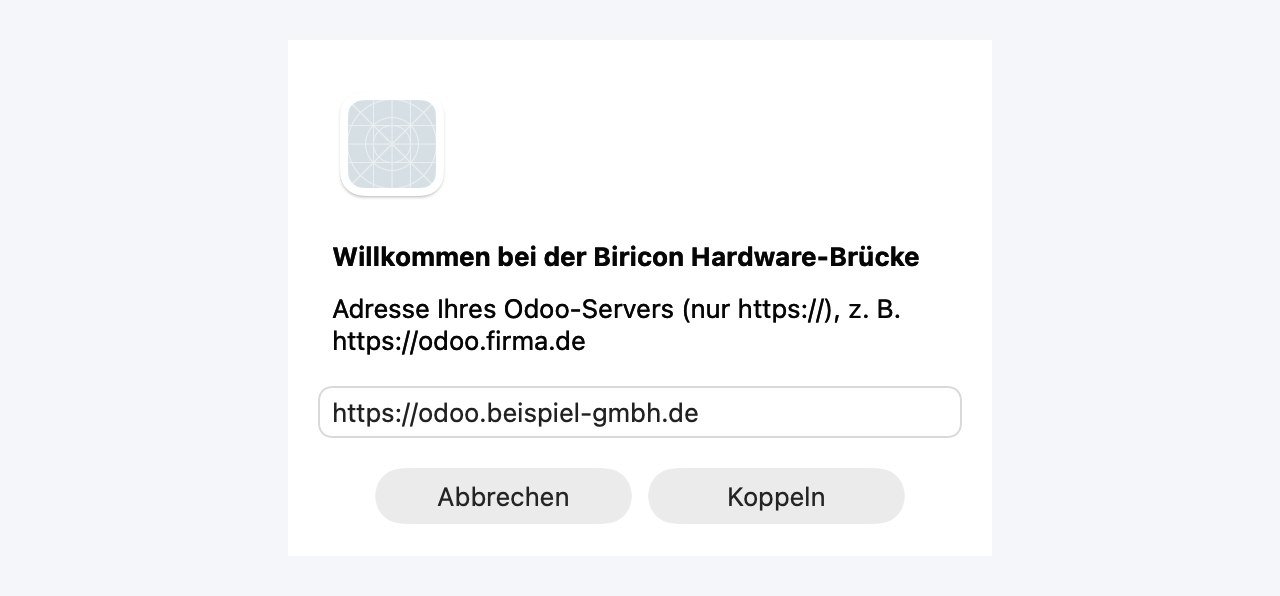
The app looks for hb-config.json in the folder /Library/Application Support/Biricon/HardwareBridge/, in the user's home folder and in the Downloads folder. In managed environments, the configuration profile replaces this file (chapter 08).
The app does not have its own program icon yet; dialogs currently show the standard macOS icon.
Command line
For checking purposes, the app can also be called on the command line (after installation as biricon-hb):
| Call | Effect |
|---|---|
--show-config | shows the effective configuration and where each value comes from |
--machine-id | shows the machine ID of this Mac |
--version | shows the version |
How it helps in practice: an example
The IT department of "Autohaus Muster KG" distributes the Windows app to twelve workplaces in sales and in the workshop. It adds the MSI to the software distribution with ALLUSERS=1 BASEURL=https://odoo.autohaus-muster.de AUTOACTIVATE=1. The next morning the app is installed on all computers, knows the Odoo address and has obtained its licence by itself. Each employee only has to pair once (chapter 04).
04 Pairing
Before a computer receives jobs, the app is paired once with your Odoo user. During pairing, the app and Odoo agree on a secret that the app uses to sign every later request. The secret reaches the app exactly once and is stored there in the Keychain (Mac) or in the Windows Credential Manager.
Procedure
- The app knows the address of your Odoo server from
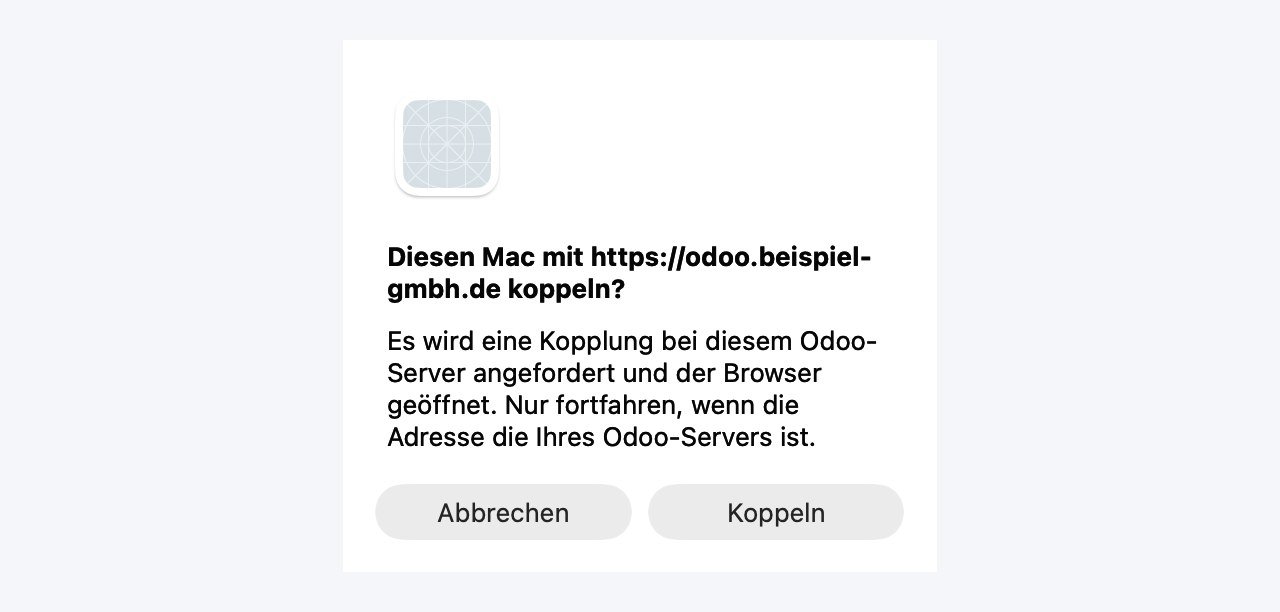
hb-config.json, from the registry or the configuration profile, or you enter it (https://only). On the Mac, the app explicitly asks before the first connection: "Pair this Mac with https://…?". Only continue if the address is that of your Odoo server.
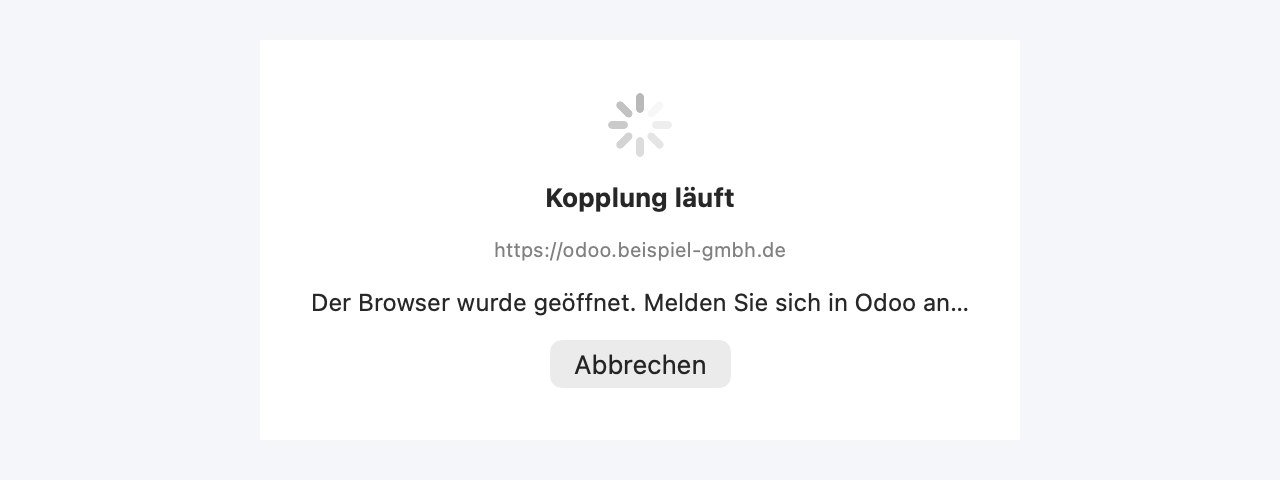
- The app requests a pairing code from Odoo and opens your default browser with the pairing page of your Odoo. If you are not signed in to Odoo, sign in; you then continue on the pairing page.
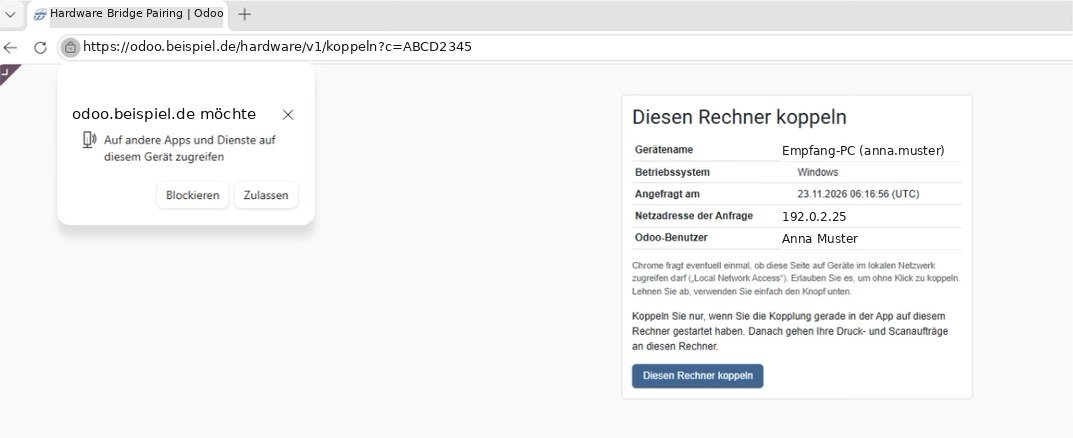
- The pairing page first tries the automatic method (Method A). If it does not succeed, it shows the Pair this computer button (Method B).
- After confirmation, the app collects its secret and reports itself as paired. The icon changes to the green dot.
The pairing code has eight characters (without the easily confused characters 0, O, 1 and I), is valid for ten minutes and can be used exactly once.
Method A: automatic, without a click
Note: Method A is finished in the Odoo module. In the Windows app it is built in and being trialled. In the Mac app it has not been checked yet (in development).
While a pairing is open, the app listens for at most ten minutes on a port on the local computer only (127.0.0.1, ports 47810 to 47819). The pairing page in your browser contacts this port and thereby proves that the browser and the app are running on the same computer. The computer is then paired without a click.
- Chrome and Edge ask the first time for each Odoo address whether the page may access devices on the local network. Allow this if you want to use the automatic method. If you decline, pairing is done with Method B.
- Safari blocks this access; there, pairing is always done with Method B.
- On terminal servers (Remote Desktop) and Macs with several users signed in at the same time, the app does not offer Method A.
- After every automatic pairing, the app shows a system notification "paired with …", and Odoo marks the device with Automatically paired - please check until the owner clicks Acknowledge.
- Method A can be switched off with the setting
AutoPairing(chapter 08).
Method B: link with a click
The pairing page shows the device name, operating system, time and network address of the request, and the Pair this computer button. Check the details and click. The click is mandatory here: it prevents someone from slipping you a link with their own code and then receiving your print jobs.
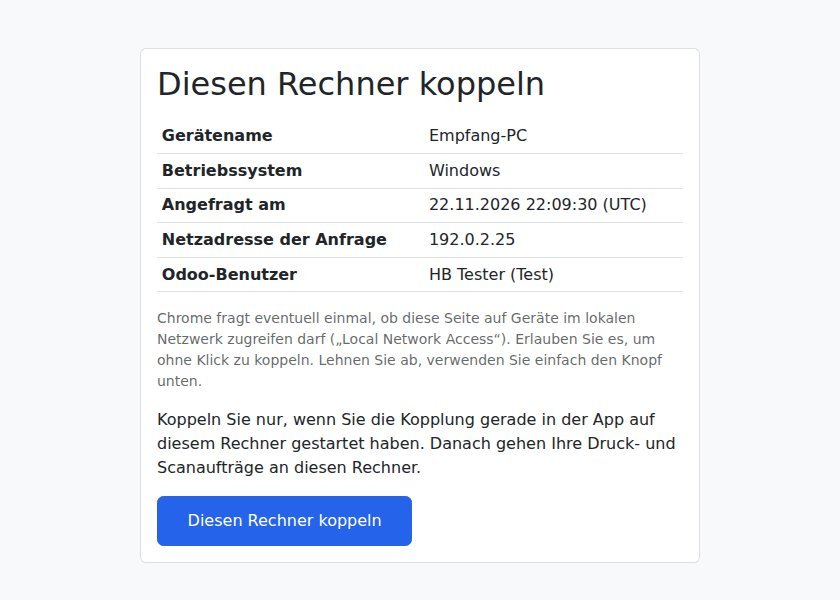
Status: Method B is verified in the Mac app on a test installation; in the Windows app it is being trialled.
Fallback: typing the code
If no browser opens, the app shows the pairing code. In Odoo, open Settings → Hardware Bridge → Pair Device, type in the code and click Continue.

Several Odoo servers
One app can be paired with several Odoo servers, for example if a tax adviser works for several clients that each have their own Odoo. Each pairing runs on its own: its own interval, its own licence, its own errors. If one server fails, the others continue to work. In the app settings under Pairings you see the list with the state of each entry and can add and disconnect pairings.
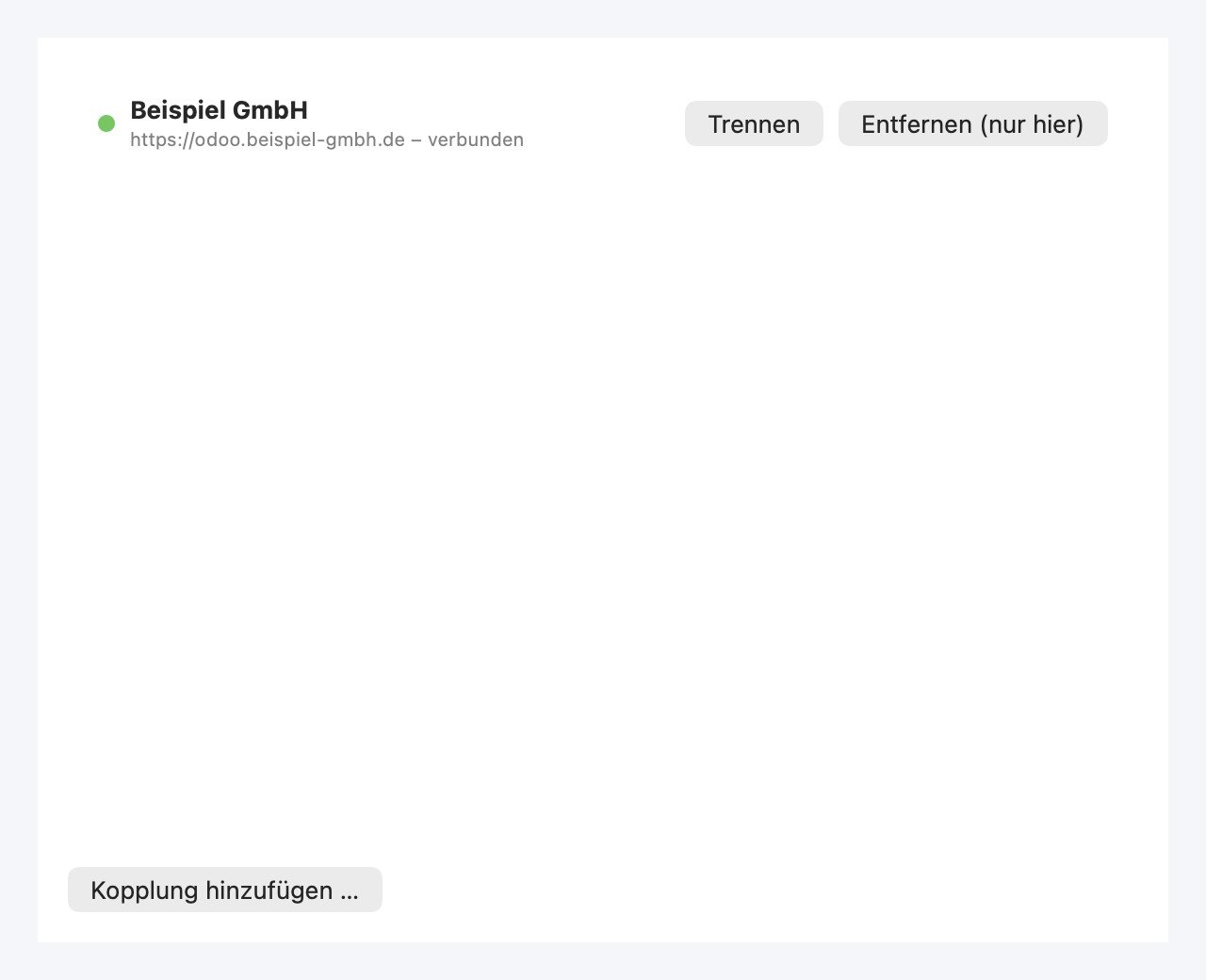
Companies can specify by setting that only certain Odoo addresses may be paired (AllowedBaseUrls) and whether users may add further servers at all (ManualServers), see chapter 08.
Disconnecting
- In Odoo: open the device and click Disconnect. The owner and company administrators may do this. Afterwards the secret and all open jobs of this device are invalid; at the next retrieval the app shows "disconnected – please pair again".
- In the app: Settings → Pairings → Disconnect. The app reports the disconnection to Odoo and removes the entry. The Mac app additionally offers Remove (here only): then only the entry on this Mac is deleted; in this case, also disconnect the device in Odoo.
Disconnect devices before a computer is retired or handed over to another employee.
Online display in Odoo
Every request from the app is also a sign of life. In the device list you see Online and Last Seen. If the device has not been seen for more than about one minute, Odoo immediately reports "Bridge not reachable" when printing and offers the normal browser print.
How it helps in practice: an example
Mara, accountant at "Nordwind Handels GmbH", gets a new computer. After installation, the app opens Chrome with the pairing page. Chrome asks once whether the page may access local devices; Mara allows it, and the computer is paired without any further click. In Odoo, the new device shows "Automatically paired - please check"; Mara clicks "Acknowledge". She disconnects the old computer in the device list.
05 Printing
Status: Direct printing is in productive use in the Odoo module. In the Mac app it is verified on real hardware; in the Windows app it is being trialled (silent printing tested, interaction with the taskbar app being trialled).
Direct print from Odoo
Wherever the module offers the Direct print button, one click is enough:
- In the document, click Direct print. The button is greyed out as long as none of your devices is online.
- If you have several devices and have not chosen a workplace yet, Odoo asks: "Which computer should receive the job?" (chapter 02, This Workplace).
- Odoo shows "Print job sent to …" and then the progress: "Waiting for the bridge ...", "Delivered to the bridge ...", "Running ...".
- Once the job has been accepted by the computer's print system, Odoo reports "Printed." or "Printed (PDF also saved locally)."

No print dialog appears. Odoo generates the PDF with the report of the form type and with the access rights of the user who created the job.
If the app is not reachable, Odoo reports "Bridge not reachable - opening the normal browser print." and opens the usual print in the browser.
Note for developers: The module provides the button as a building block for forms (
<widget name="hb_print_button" formular="rechnung"/>) and as a service for your own extensions. The setup determines in which forms it appears. Integration into the print menu of every report is planned for version 3 (chapter 12).
Which printer?
The app chooses the printer in this order:
| Rank | Source | Where set |
|---|---|---|
| 1 | Local printer for the form type, only if set | App: Settings → PDF storage, field Printer; registry Print\<Formulartyp>\Printer; profile Print.<Formulartyp>.Printer |
| 2 | Printer per device | Odoo: Printer per Device |
| 3 | Printer per form type | Odoo: Printers per Form Type |
| 4 | Default printer of the computer | Operating system |
Rules:
- The printer name is compared exactly. On Windows, network shares such as
\\server\HP 4. OGare allowed; on the Mac, the name of the print queue (as shown bylpstat -e). - If an assigned printer is missing on the computer, the job ends with the error "The assigned printer does not exist on this computer." The app does not silently fall back to the default printer. This way no invoice ends up in the warehouse by mistake.
- Double-sided printing and the number of copies come from the job.
Local PDF storage per form type
Status: PDF storage is built into the Windows app and is being trialled. In the Mac app, storage in a real folder has not been checked yet (in development).
In addition to printing, the app can store every document as a PDF. You set this in the app, per pairing and per form type:
| Mode | Effect |
|---|---|
| Print only | Default. No PDF is saved. |
| Print and save as PDF | The document is printed and stored as a PDF. The print is what counts: if saving fails, the job still counts as printed; the saving error is shown in the detail. |
| Save as PDF only | Nothing is printed, only saved. |
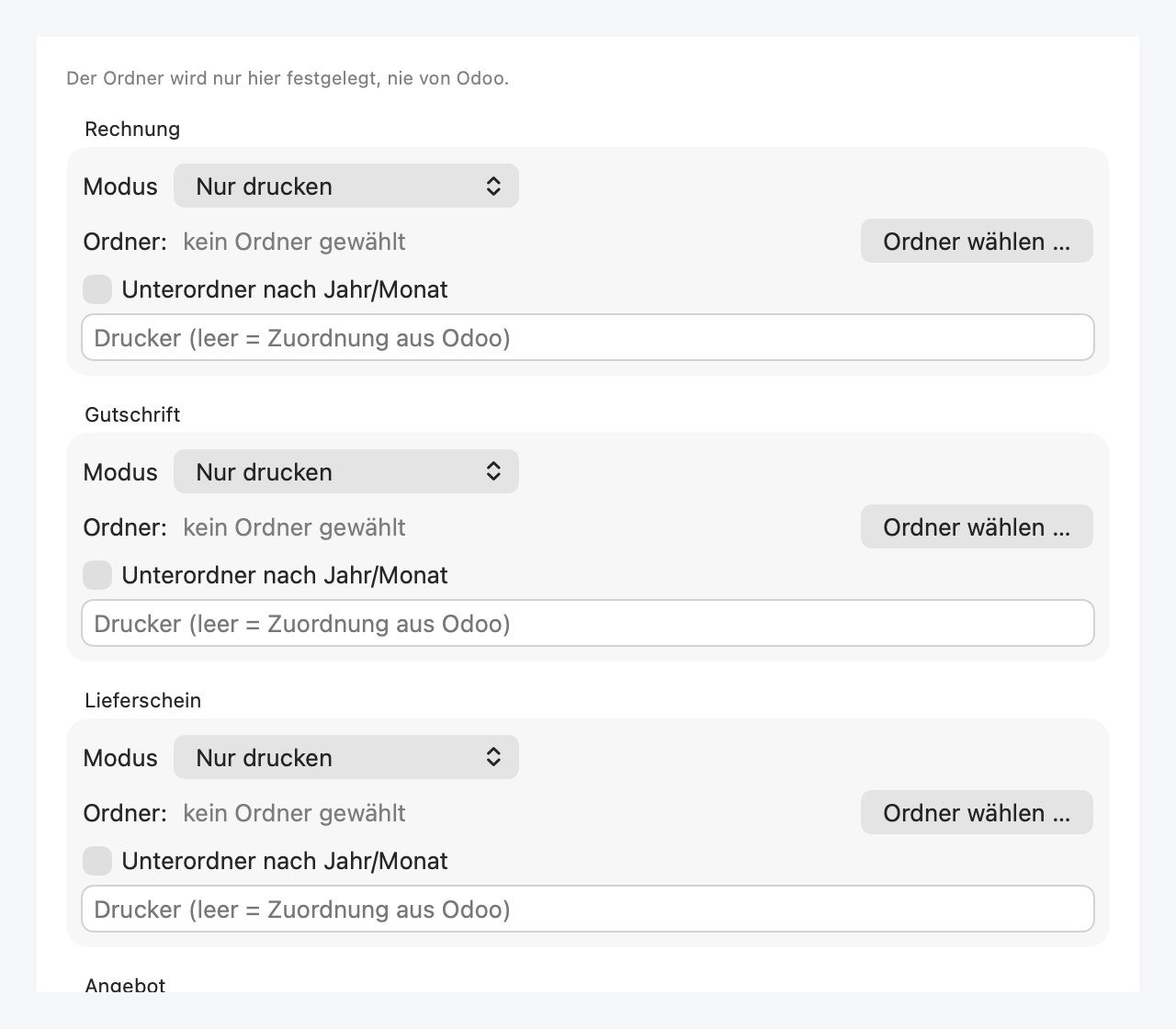
Settings:
- In the app, open Settings → PDF storage.
- Choose the mode for the form type.
- Click Choose folder … and select the folder in the operating system's dialog.
Dokumente\Biricon\<Formulartyp>is suggested. - If you wish, switch on Subfolder by year/month (e.g.
2026\11).
Rules for storage:
- The folder never comes from Odoo. An Odoo server cannot determine a location on your computer. Odoo only learns "saved: yes/no", never the path.
- Network drives and OneDrive folders are allowed. If the folder cannot be reached when saving, saving ends with an error, without falling back to another folder.
- The file name is the document name from Odoo, for example
RE-2026-00123.pdf. The app removes invalid characters, shortens names that are too long and appends(2)if the file already exists. Nothing is ever overwritten. - If there is no document name, the file is named
<Formulartyp> <JJJJ-MM-TT HH-MM-SS>.pdf. - The app first writes a temporary file in the target folder and then renames it. No half-written PDFs are created.
- Under Recent files in the app menu you see what was saved last and can open the folder.
How it helps in practice: an example
"Kanzlei Beispiel & Partner" has to store every outgoing invoice additionally on the firm's network drive. Via Group Policy, IT sets for the form type "Invoice" the mode Print and save as PDF, the folder \\kanzlei-fs\Rechnungen and subfolders by year and month. Employees click Direct print as usual; the invoice comes out of the printer and is stored as RE-2026-00123.pdf in the folder 2026\11. In the app the setting is locked and marked "Managed by your organisation".
Printing errors
| Code | Shown in Odoo | What to do |
|---|---|---|
drucker_fehlt | The assigned printer does not exist on this computer. | Compare the printer name in Odoo or in the app exactly with the name in the operating system. |
kein_drucker | No printer on this computer. | Set up a printer in the operating system or define a default printer. |
drucker_offline | The printer is offline. | Switch on the printer, check the connection. |
pdf_ungueltig | The document could not be printed (invalid PDF). | Open the document as a PDF in the browser; if the error occurs there too, it lies in the report. |
speichern_fehlt | The PDF could not be saved (folder missing or not writable). | Check the folder, network drive and write permissions; shorten paths that are too long. |
datentraeger_voll | The disk is full. | Free up space or choose another folder. |
abgelaufen | Bridge not reachable | The app did not collect the job within two minutes. Is the app running? Is the icon green? |
rate | Too many jobs for this device. Please wait a minute. | At most 60 jobs per device and minute. |
All error codes are listed in chapter 11.
06 Scanning
Status: Direct scanning is in productive use in the Odoo module. In the Mac app, scanning via the flatbed with upload is verified on real hardware; feeder, double-sided scanning and the local scan copy are in development on the Mac. In the Windows app, scanning via the feeder and double-sided has been tested on real hardware; the interaction with the taskbar app is being trialled.
Direct scan from Odoo
A scan is always stored at the place in Odoo from which you start it, for example on a document or in a document field.
- Place the paper on the flatbed or in the feeder.
- In Odoo, click Direct scan.
- If the scanner can scan double-sided, Odoo asks: "Single-sided or double-sided?". Also choose colour or greyscale; the setting chosen last is suggested. Click Start scan.
- The app does not open a window of its own. It scans, creates a multi-page PDF at 200 to 300 dpi and uploads it to Odoo.
- Odoo reports "Scan received." and reloads the document. The PDF is now attached to the document.
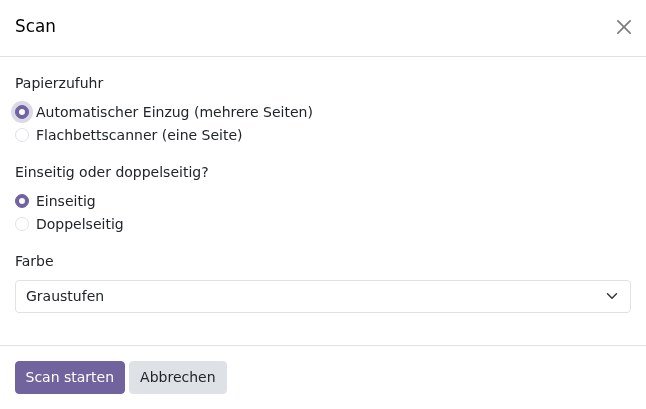
The web page never sees the image data; it only learns that the scan has arrived. A scan job expires after ten minutes without a response.
Supported are scanners with a WIA driver on Windows, and on the Mac scanners that macOS addresses via ImageCaptureCore. TWAIN scanners on Windows are intended for a later version.
How it helps in practice: an example
At "Autohaus Muster KG", the customer signs the workshop order on paper. Receptionist Selin places the sheet on the flatbed, clicks Direct scan in the order in Odoo and chooses "Single-sided". A few seconds later the signed order is in the document as a PDF. No e-mail to herself, no download, no wrongly assigned attachment.
Default scanner
If several scanners are connected to a computer, you specify in the app under Settings → Scan → Default scanner which one is used without a selection. In the device view, Odoo sees which scanners the app has reported and whether they support feeder, double-sided scanning and flatbed.
Local scan copy
In the app under Settings → Scan you specify whether scanned pages are also saved locally:
| Setting | Effect |
|---|---|
| Also save scanned pages locally | The app writes the finished PDF to the chosen folder before it uploads it. If the upload fails, the scan is not lost. |
| Folder | Via Choose folder …; suggestion Dokumente\Biricon\Scans, if you wish with subfolders by year and month. The folder never comes from Odoo. |
| Save locally only, do not upload to Odoo | The scan stays on the computer only. |
| Also save single pages as JPEG | Each page is additionally saved as an image. |
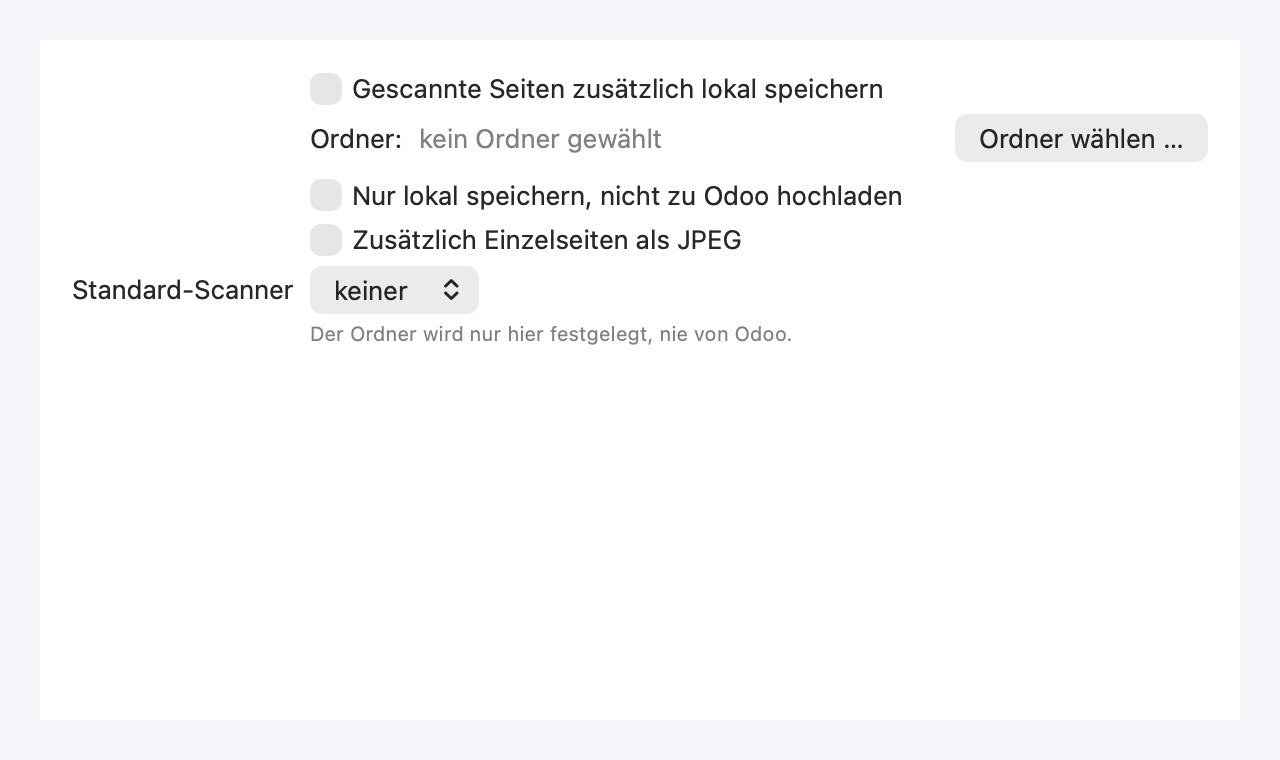
The file name is the name from the job, otherwise Scan_<JJJJ-MM-TT>_<hhmmss>.pdf. Existing files are never overwritten. If local saving fails, the scan is still uploaded and the error is reported as a detail.
"Local only"
If Save locally only is switched on, Odoo points this out before the scan: "Scans are only saved locally on this computer, not uploaded." After the scan, Odoo shows "Scan only saved locally, not uploaded." This is neither an error nor a silent disappearance: the scan is in the chosen folder on the computer. The job list then shows Only Saved Locally.
This setting is suitable, for example, for workplaces where documents are deliberately not to end up in Odoo.
Scanning errors
| Code | Shown in Odoo | What to do |
|---|---|---|
kein_scanner | No supported scanner on this computer. | Switch on and connect the scanner; check whether a WIA driver (Windows) is installed or whether macOS recognises the scanner. |
scanner_belegt | The scanner is busy. | Close other scanning programs, try again. |
scanner_fehler | Scanner error. | Restart the scanner; check for a paper jam. |
papier_fehlt | No paper. | Place paper in the feeder. |
zu_gross | The scan is too large (more than 25 MB). | Choose fewer pages per scan or greyscale instead of colour. The app compresses beforehand; the limit is 25 MB. |
speichern_fehlt | The PDF could not be saved (folder missing or not writable). | Check the folder of the scan copy. |
abgelaufen | Bridge not reachable | The scan was not completed within ten minutes. |
07 Taskbar and menu bar interface
The app has no main window. On Windows it runs as an icon in the notification area of the taskbar (bottom right), and on the Mac as an icon in the menu bar (top right). At first start, the setup dialog with the Odoo address and pairing opens; after that only the icon remains.
Status: The Mac app interface is built; the pictures in this chapter are renderings of the windows with invented values. The taskbar interface of the Windows app (version 0.9) is built and being trialled; pictures will follow.
The icon
| Display | Meaning |
|---|---|
| Green dot | All pairings are connected: the last retrieval from Odoo was successful, the licence is valid, the pairing exists. |
| Small red X | At least one pairing is not connected, or there is no pairing yet ("not paired"). |

The display changes within about five seconds after a change. If you move the mouse over the icon, the tooltip names the app name, version, the state of each pairing (e.g. "Beispiel GmbH: connected", "Muster KG: server not reachable") and the last activity.
A loss of connection does not produce any message windows, only the red X. One-time system notifications are shown only for licence errors, for a disconnected pairing and after every automatic pairing.
The menu
A right-click on the icon (Windows) or a click (Mac) opens the menu. The order is the same on both systems:
- Settings (on Windows also by double-clicking the icon)
- About
- Pairings: list with state, add and disconnect
- Recent files: most recently stored PDFs, open folder
- Print test page and Test scan
- Open log file
- Quit
The texts appear in German or English according to the system language or the Language setting.
win_tray_menue.jpg
mac_menue_menueleiste.jpg
About
The About dialog shows:
- logo, product name, version and build, manufacturer Biricon IT Services GmbH
- the licence status per pairing, for example "Full licence, valid until …" or "Demo, 13 days left"; from three days remaining, the notice turns yellow
- the machine ID with the Copy button (for a computer change, chapter 09)
- Contact and support: it@biricon.eu, phone AT +43 1 960 80 30, DE +49 30 800 982 860, UK +44 5603 87 10 36
- Biricon's websites: biricon.at, biricon.eu, ortsnetz.at, sicherheitsloesungen.com, fleet365.eu
- the trademark notice about Odoo and the privacy notice
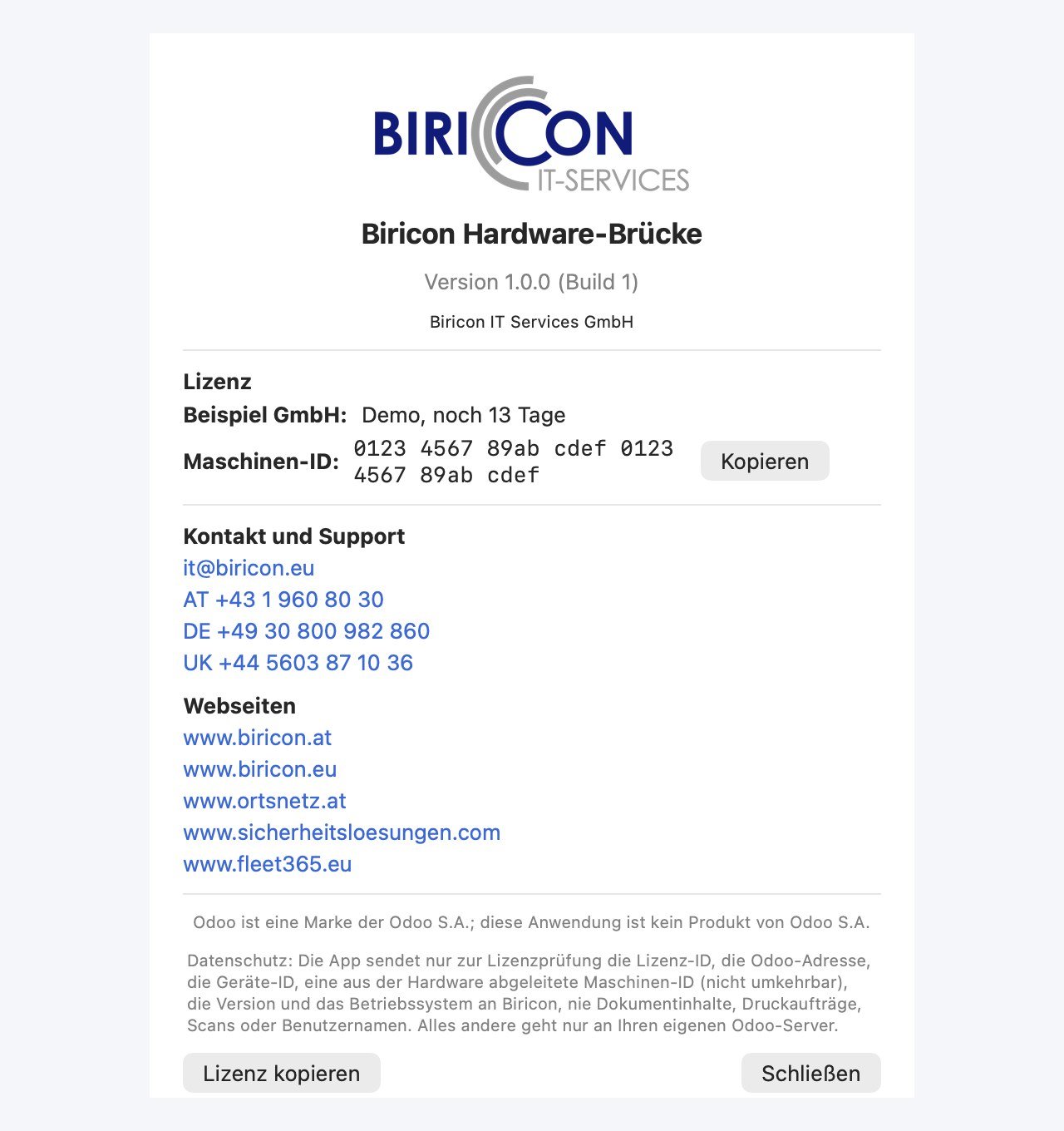
win_info.jpg
Copy licence places the licence ID, product, validity, number of devices, app version, operating system and Odoo address as text on the clipboard. This is useful for a request to support. The pairing secret is never copied.
Settings
| Section | Content |
|---|---|
| General | Autostart on/off, language (automatic, German, English), notifications. The system notification after an automatic pairing always stays on. |
| Pairings | List of Odoo servers with state; add pairing, disconnect (chapter 04) |
| PDF storage | per form type mode, folder, subfolder by year/month, optional local printer (chapter 05) |
| Scan | Scan copy, folder, local only, single pages, default scanner (chapter 06) |
mac_einstellungen_allgemein.jpg
Values that your organisation specifies via Group Policy or configuration profile are greyed out and marked Managed by your organisation (chapter 08).
Note: On the Mac, autostart is switched on by default and can be switched off; the function has not been fully checked there yet. On Windows, the installer sets up autostart.
Print test page and Test scan
With Print test page the app sends a test page to the printer, with Test scan it checks the scanner, without needing a job from Odoo. Both are suitable for checking after setup whether the app can reach the printer and scanner.
Log file
The app writes a log file. It never contains document contents and never secrets. The setting LogLevel (error, info, debug) controls the level of detail. For troubleshooting, temporarily set debug (chapter 11).
How it helps in practice: an example
Lukas from the sales team of "Muster Elektro Handels GmbH" sees a red X on the icon in the morning. The tooltip shows "Muster Elektro: server not reachable". He notices that his notebook is not on the company network, connects the VPN, and after a few seconds the dot is green again. No message window interrupted him.
08 Configuration via registry, Group Policy and configuration profile
Principle: Everything that can be set in the app settings can also be specified centrally: on Windows via the registry and Group Policy, on the Mac via a configuration profile. Specified values are locked in the app and marked Managed by your organisation.
Status: The Windows templates (
.reg, ADMX/ADML) have been created and automatically checked for completeness. Loading them in Group Policy Management and importing the.regon a test computer are currently being trialled. The Mac app evaluates the configuration profile (verified); distribution via a device management system (MDM) has not been checked yet.
Order of precedence on Windows
Higher wins:
| Rank | Location | Origin |
|---|---|---|
| 1 | HKLM\SOFTWARE\Policies\Biricon\HardwareBridge | Group Policy, Computer Configuration (locked) |
| 2 | HKCU\SOFTWARE\Policies\Biricon\HardwareBridge | Group Policy, User Configuration (locked) |
| 3 | HKCU\SOFTWARE\Biricon\HardwareBridge | User settings, written by the app itself |
| 4 | HKLM\SOFTWARE\Biricon\HardwareBridge | Installation defaults (MSI properties) or company defaults |
| 5 | – | built-in default values |
Order of precedence on the Mac
Domain com.biricon.hardwarebridge. Higher wins:
| Rank | Origin |
|---|---|
| 1 | Configuration profile for the device (managed, locked) |
| 2 | Configuration profile for the user (managed, locked) |
| 3 | User settings in the app |
| 4 | Installation defaults: /Library/Preferences/com.biricon.hardwarebridge.plist |
| 5 | built-in default values |
All values
<Formulartyp> stands for the keys from chapter 02 (rechnung, gutschrift, lieferschein, angebot, auftrag, bestellung, etikett, sonstiges or a custom one). On Windows the subpaths are registry subkeys (Print\rechnung), on the Mac nested entries (Print → rechnung → Mode).
| Value | Type (registry) | Values | Default | Meaning |
|---|---|---|---|---|
Language | SZ | auto, de, en | auto | Interface language |
Autostart | DWORD | 0, 1 | 1 | Start at sign-in |
UpdateCheck | DWORD | 0, 1 | Windows 1, Mac 0 | Ask the paired Odoo server for updates, never Biricon (function planned) |
LogLevel | SZ | error, info, debug | info | Level of detail of the log file, never document contents |
ProxyUrl | SZ | Address | empty = system proxy | Proxy, e.g. http://proxy.firma.local:8080 |
AutoPairing | DWORD | 0, 1 | 1 | Allow pairing without a click (Method A); always off on terminal servers |
ManualServers | DWORD | 0, 1 | 1 | User may pair further Odoo servers |
AllowedBaseUrls | MULTI_SZ | List https://… | empty = all | Only these Odoo addresses may be paired |
Servers\<n>\BaseUrl | SZ | https://… | – | Preconfigured Odoo server (replaces hb-config.json); Mac: Servers as a list of entries with BaseUrl and Name |
Servers\<n>\Name | SZ | Text | – | Display name of the server |
LicenceId | SZ | Licence ID | empty | Licence ID from the licence letter for self-activation (chapter 09) |
EnrollToken | SZ | Token | empty | Enrolment token for self-activation (chapter 09) |
AutoActivate | DWORD | 0, 1 | Mac: 1 if a server is specified; Windows: 1 | Obtain the licence from the quota automatically |
Print\<Formulartyp>\Mode | SZ | nur_drucken, drucken_und_speichern, nur_speichern | nur_drucken | PDF storage (chapter 05) |
Print\<Formulartyp>\Folder | EXPAND_SZ | Folder | empty | Storage folder; environment variables and UNC paths allowed; Mac: ~ and $HOME |
Print\<Formulartyp>\SubfolderByDate | DWORD | 0, 1 | 0 | Subfolder year/month |
Print\<Formulartyp>\Printer | SZ | Printer name | empty = assignment from Odoo | Local printer; replaces the assignment from Odoo only if set |
Scan\Copy | DWORD | 0, 1 | 0 | Save scan copy locally |
Scan\Folder | EXPAND_SZ | Folder | empty | Folder of the scan copy |
Scan\OnlyLocal | DWORD | 0, 1 | 0 | Save locally only, do not upload |
Scan\SinglePages | DWORD | 0, 1 | 0 | Also save single pages as JPEG |
Scan\DefaultScanner | SZ | Name | empty | Default scanner |
On the Mac, switches are Boolean values (true/false) instead of 0/1.
What never belongs in the registry or the profile
The registry and the profile contain no secrets: no pairing secret, no key. A pairing is only created by pairing and is stored per user in the Keychain or in the Windows Credential Manager.
The only exception is the enrolment token EnrollToken. It can only take up seats of your own licence, up to the limit and validity that Biricon has set, and it can be replaced and blocked at Biricon. This is how to handle it:
- If it comes from the installation defaults (rank 4), the app deletes the value after the first successful activation.
- If it is set via Group Policy or profile, it remains readable on the computer, because the policy keeps writing it again. Only use tokens with a short validity and few activations there.
- It never appears in the app log, and in the configuration display only as "set".
Folder settings from the registry or profile count as local settings of the computer. They do not come from Odoo.
Example registry file (Windows)
Biricon supplies Biricon-HardwareBridge.reg with comments. It writes the user settings (rank 3) and is intended for trying out on test computers. For company defaults, replace HKEY_CURRENT_USER with HKEY_LOCAL_MACHINE (rank 4); enforced values are better distributed via Group Policy. Excerpt (without the encoding of the multi-string and path values):
[HKEY_CURRENT_USER\SOFTWARE\Biricon\HardwareBridge]
"Language"="auto"
"Autostart"=dword:00000001
"LogLevel"="info"
"AutoPairing"=dword:00000001
"ManualServers"=dword:00000001

[HKEY_CURRENT_USER\SOFTWARE\Biricon\HardwareBridge\Servers\1]
"BaseUrl"="https://odoo.firma.de"
"Name"="Firma Hauptsitz"

[HKEY_CURRENT_USER\SOFTWARE\Biricon\HardwareBridge\Print\rechnung]
"Mode"="drucken_und_speichern"
"SubfolderByDate"=dword:00000001

[HKEY_CURRENT_USER\SOFTWARE\Biricon\HardwareBridge\Print\lieferschein]
"Mode"="nur_drucken"

[HKEY_CURRENT_USER\SOFTWARE\Biricon\HardwareBridge\Scan]
"Copy"=dword:00000000
"OnlyLocal"=dword:00000000
Folder values are of type EXPAND_SZ (e.g. %USERPROFILE%\Documents\Biricon\Rechnung), AllowedBaseUrls of type MULTI_SZ. In the example file they are already encoded correctly.
Group Policy templates (ADMX/ADML)
Scope of delivery:
| File | Destination |
|---|---|
BiriconHardwareBridge.admx | PolicyDefinitions (locally C:\Windows\PolicyDefinitions or in the domain's central store) |
de-DE\BiriconHardwareBridge.adml | PolicyDefinitions\de-DE |
en-US\BiriconHardwareBridge.adml | PolicyDefinitions\en-US |
In Group Policy Management you find the policies under Computer Configuration or User Configuration → Administrative Templates → Biricon → Hardware Bridge, organised into General, Odoo servers and pairing, PDF storage when printing and Scan (21 policies). Computer Configuration writes rank 1, User Configuration rank 2.
win_gpo.jpg
| Group | Policies |
|---|---|
| General | Application language · Start with Windows sign-in · Check for updates · Log level · Proxy server |
| Odoo servers and pairing | Allow automatic pairing via the browser · Users may add further Odoo servers · Allowed Odoo addresses · Predefined Odoo server 1 to 3 |
| PDF storage when printing | PDF storage: Invoice, Credit note, Delivery note, Quotation, Order confirmation, Purchase order, Label, Other (each with mode, folder, subfolder, printer) |
| Scan | Also save scanned pages locally (with folder, local only, single pages) · Default scanner |
Limits of the template: at most three preconfigured servers, PDF storage only for the eight fixed form types. You set further servers or form types directly via the registry (Servers\<n>, Print\<Formulartyp>). LicenceId, EnrollToken and AutoActivate are currently not included in the ADMX template; they are set via MSI property or registry.
MSI properties
The properties BASEURL, AUTOSTART, LANGUAGE, LICENCEID, ENROLLTOKEN and AUTOACTIVATE write installation defaults to HKLM\SOFTWARE\Biricon\HardwareBridge (rank 4), or to the user branch for a per-user installation. Details in chapter 03.
Configuration profile (Mac)
Biricon supplies a commented example profile Biricon-HardwareBridge.mobileconfig. It sets managed settings of the domain com.biricon.hardwarebridge with the same keys as above. Excerpt:
<key>Language</key><string>de</string>
<key>AutoPairing</key><true/>
<key>ManualServers</key><false/>
<key>AllowedBaseUrls</key>
<array><string>https://odoo.beispiel.de</string></array>
<key>Servers</key>
<array><dict>
  <key>BaseUrl</key><string>https://odoo.beispiel.de</string>
  <key>Name</key><string>Beispiel GmbH</string>
</dict></array>
<key>AutoActivate</key><true/>
<key>Print</key>
<dict>
  <key>rechnung</key>
  <dict>
    <key>Mode</key><string>drucken_und_speichern</string>
    <key>Folder</key><string>~/Documents/Biricon/Rechnung</string>
    <key>SubfolderByDate</key><true/>
  </dict>
</dict>
<key>Scan</key>
<dict>
  <key>Copy</key><true/>
  <key>Folder</key><string>~/Documents/Biricon/Scans</string>
</dict>
Distribution: via your device management system (MDM) as custom settings with this content. For trying it out on a single Mac: double-click the profile, then install it in System Settings → Privacy & Security → Profiles. Replace the placeholders (identifiers, addresses) beforehand. Network drives as folders only work if the Mac has mounted them. The printer name is the name of the queue (lpstat -e).
mac_profil_systemeinstellungen.jpg
For testing, individual values at user level can also be set in Terminal, for example defaults write com.biricon.hardwarebridge LogLevel debug (defaults delete … resets it).
Checking the effective configuration
With --show-config, both apps show which value applies and where it comes from. Example from a Mac with the example profile (shortened; the current test version prints this output in German):
Wirksame Konfiguration (Domain com.biricon.hardwarebridge); höchster Rang gewinnt: verwaltet > Benutzer > Installation > Standard

Language                 de                         Profil (Gerät, verwaltet)  [gesperrt]
AutoPairing              1                          Profil (Gerät, verwaltet)  [gesperrt]
ManualServers            0                          Profil (Gerät, verwaltet)  [gesperrt]
AllowedBaseUrls          https://odoo.beispiel.de   Profil (Gerät, verwaltet)  [gesperrt]
Print.rechnung.Mode      drucken_und_speichern      Profil (Gerät, verwaltet)  [gesperrt]
Scan.Copy                1                          Profil (Gerät, verwaltet)  [gesperrt]
On Windows: Biricon-HardwareBridge.exe --show-config. In both cases EnrollToken only appears as "set" (German: „gesetzt“).
How it helps in practice: an example
The IT department of "Nordwind Handels GmbH" wants all computers to be paired only with the company's own Odoo, and delivery slips in the warehouse never to be saved locally. It copies the ADMX files to the central policy store, enables "Allowed Odoo addresses" under Computer Configuration with https://odoo.nordwind.de, disables "Users may add further Odoo servers" and sets the mode "Print only" for "PDF storage: Delivery note". With --show-config it checks on a warehouse computer that all three values come from the policy.
09 Licences
This chapter describes the licence from the point of view of users and IT: what the app shows, what to do about messages, how a computer change works and how the licence reaches the computers without manual work when the app is distributed to many computers.
Status: The licence check is built in both apps. In the Mac app, it is verified together with self-activation against a test installation; in the Windows app, it has been tested against a test licence server.
How the licence works
- A licence applies to the address of your Odoo server and to a certain number of computers (quota).
- Each computer takes up one seat. It is recognised by its machine ID, an irreversible identifier derived from the hardware. If several users use the same computer, it still takes up only one seat.
- The app checks the licence with Biricon's licence server at start and then once a day. The response is signed by Biricon; the app verifies the signature itself.
- If the licence server is temporarily not reachable, the app continues to work with the last confirmed licence for up to five days, but never beyond the end of the licence.
- Without a valid licence, the app does not carry out any jobs. Odoo then shows, for example, "No licence for the hardware bridge." or "The hardware bridge licence has expired."
Licence status in the app
You see the status of each pairing in the About dialog (chapter 07) and in the icon's tooltip:
| Display | Meaning |
|---|---|
| Full licence, valid until … | Licence valid |
| Demo, N days left | Demo licence with remaining term; from three days remaining, the notice turns yellow |
| no licence yet | The app has not received a licence yet, for example before the first activation |
Demo licence
For trying it out, Biricon issues a demo licence for a short period and a few computers. The app shows "Demo, N days left". At the end of the demo, use ends without a period of grace. A demo can be converted into a full version; the licence ID stays the same, and nothing needs to be done on the computers.
Messages and what to do
| App message | Meaning | What to do |
|---|---|---|
| licence expired | The licence has ended. | Request a renewal from Biricon, e.g. in the customer portal (below). |
| licence check missing (grace period over) | The licence server was not reachable for more than five days. | Check internet access, proxy and firewall: the app must be able to reach https://www.biricon.eu. |
| licence server not reachable | Temporarily no connection; the app continues to work within the grace period. | Nothing, as long as it does not last longer. Otherwise as above. |
| no valid licence | There is no licence for this Odoo address. | Contact Biricon. |
| Odoo address not licensed / licence belongs to another Odoo address | The app is paired with an address for which the licence does not apply. | Check the pairing address (exactly the licensed https:// address). |
| licence device limit reached / No free seat in the quota | All seats are taken. | Have an old computer released or extend the quota (Biricon). |
| licence revoked | Biricon has blocked the licence. | Contact Biricon. |
| check this PC's clock / check this Mac's clock | The computer's clock deviates considerably. | Correct the computer's date, time and time zone. |
| licence response invalid | The licence server's response could not be verified, for example because a proxy changed it. | Set up a proxy exception for https://www.biricon.eu; otherwise contact support. |
Computer change
The licence is bound to the computer. If a computer is replaced, Windows is reinstalled or a system is cloned, the machine ID changes. On the Mac, it changes when the logic board is replaced. Cloned virtual machines share the same machine ID until they are prepared with sysprep; two such clones count as one computer.
If the app detects that the licence belongs to a different computer, it shows:
“The licence is bound to a different computer. Please renew the licence with Biricon.”
Below it is the computer's machine ID with the Copy button. Proceed as follows:
- Click Copy (the ID has 32 characters; it is displayed in groups of four and copied without spaces).
- Write to it@biricon.eu stating which computer was replaced, and paste the new machine ID.
- Biricon transfers the licence to the new computer. The app then checks again at the next start or after one day at the latest, and the status is valid again.
A certain number of transfers is included per licence and calendar year; the customer portal shows, for example, "0 of 1 transfer this year". Further transfers are possible by arrangement.
On the Mac, the command line option --machine-id also shows the machine ID.
Distribution with a quota: self-activation
If you distribute the app to many computers, you do not have to type anything on each computer. If the Odoo address is specified via MSI property, registry or configuration profile (chapters 03 and 08), the app asks the licence server at first start whether a seat in the quota is free for this address, obtains the licence itself and stores it locally.
- This is controlled with
AutoActivate(default: on if a server is specified). - Depending on the agreement, your licence additionally requires for self-activation the licence ID from the licence letter (
LicenceIdor MSI propertyLICENCEID) or an enrolment token that Biricon gives you for the rollout (EnrollTokenorENROLLTOKEN). Without this information, self-activation may be switched off for your licence; the app then reports "self-activation is off for this licence". - If no seat is free, the app shows "No free seat in the quota. Please contact Biricon." and tries again at most every six hours and at every start.
- If the licence server is not reachable at the first activation, the app keeps trying at increasing intervals. Without a first licence it does not work.
- The licence is then stored on Windows per user under
%LOCALAPPDATA%\Biricon\HardwareBridge\licence.json, on the Mac under/Library/Application Support/Biricon/HardwareBridge/or in the user's home folder. The file contains only the signed response, no secret.
The licence does not replace pairing: each user still pairs the app once with Odoo (chapter 04).
How it helps in practice: an example
"Muster Elektro Handels GmbH" has a licence for 15 computers. IT distributes the MSI with BASEURL and LICENCEID to 12 computers. Each computer takes its seat at first start; the customer portal then shows "12 of 15". When a notebook in the warehouse fails and is replaced, the app on the new device reports the machine ID; IT sends it to Biricon, and the licence is transferred.
Your licences in the customer portal
In Biricon's customer portal, under My Licences, you find all licences of your company:
- product, licence ID, status (for demos with remaining term), valid from/until
- used and permitted seats, the permitted Odoo address
- the activated computers with device ID, operating system, app version and "last seen"
- the number of transfers this year
- the licence letter as a text file for download
- the buttons Request renewal and Request full version
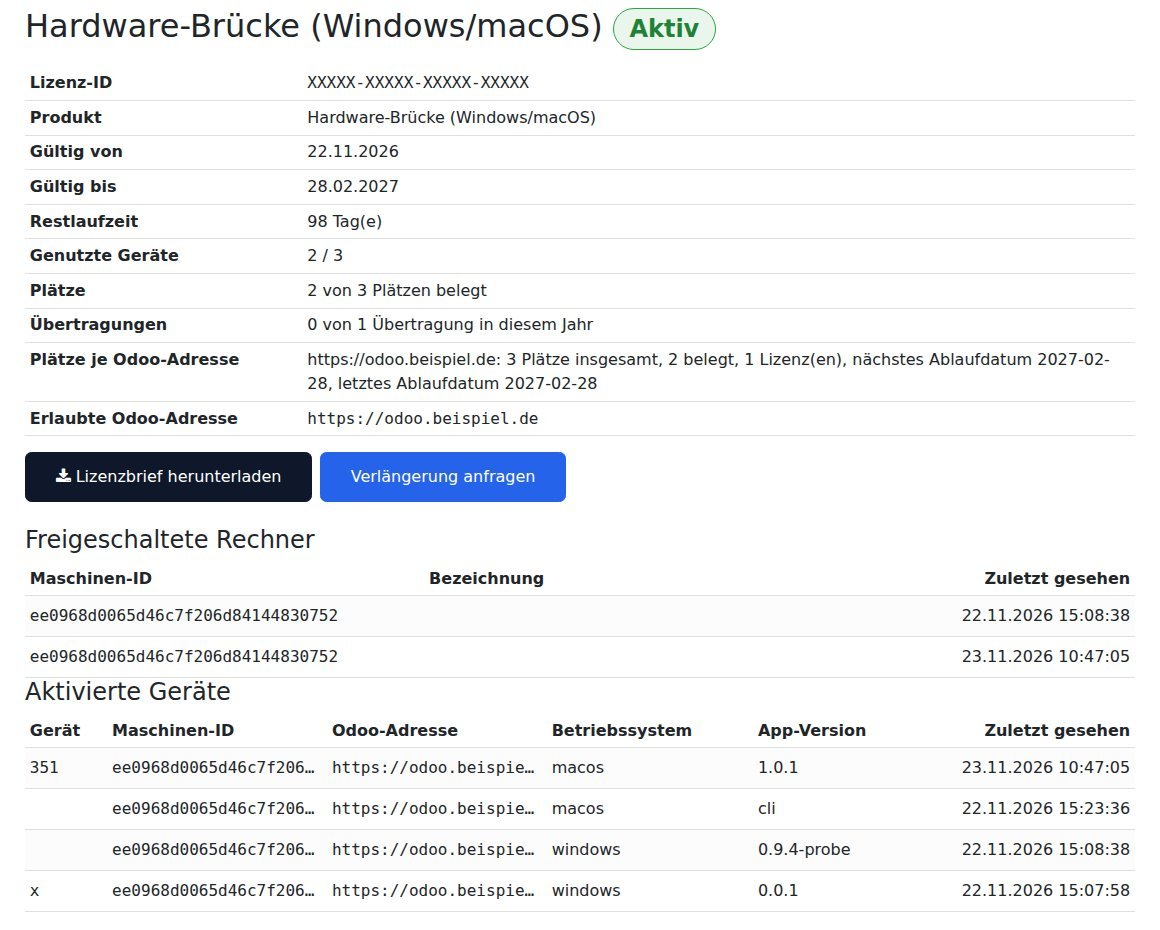
A request in the portal does not trigger an automatic e-mail; Biricon will get in touch with you.
10 Security and data protection
An app that accepts jobs from a server, prints and writes files must be tightly restricted. This chapter summarises the protective measures and the data flows.
Basic rules
- No incoming connections. In normal operation the app does not open a network port. All connections go from the app to your Odoo server or to the licence server. Exception: during pairing without a click (Method A), the app listens for at most ten minutes, only on
127.0.0.1(chapter 04). - HTTPS only, with certificate verification. The app checks every server certificate against the system's certificate store. The check cannot be switched off. The Mac app does not follow redirects to other addresses.
- Signed requests. Every request from the app to Odoo carries an HMAC-SHA256 signature over time, nonce, method, path and content. Odoo rejects requests whose time deviates by more than two minutes or whose nonce has already been used.
- Never paths or commands from the server. A job only contains "print this PDF" or "scan", plus form type, document name, printer, copies and double-sided. Odoo cannot specify folders, programs or other addresses. The callback address of a job must belong to the paired Odoo address; otherwise the app rejects the job.
- Short-lived jobs. A print job must start within two minutes and is delivered exactly once. After a restart, the app does not print old jobs retroactively.
- Rights from Odoo. Jobs only go to your own devices or to devices shared by the company administrator, and only for documents that the user may read (print) or change (scan). At most 60 jobs per device and minute.
What is stored where
| What | Where | Note |
|---|---|---|
| Pairing secret (app) | Mac: Keychain; Windows: Credential Manager, per user | never in files, registry, log or clipboard |
| Pairing secret (Odoo) | Database, encrypted with AES-256-GCM | key outside the database (chapter 02); sent in plain text to the app exactly once |
| Licence | licence.json in the user profile or under /Library/Application Support/… | only the signed response, no secret |
| Settings | Registry or preferences/profile | no secrets except the restricted enrolment token (chapter 08) |
| App log | Log file | without document contents and secrets |
| Job log in Odoo | Settings → Hardware Bridge → Jobs | user, device, type, document, result, "saved yes/no"; never contents, never local paths |
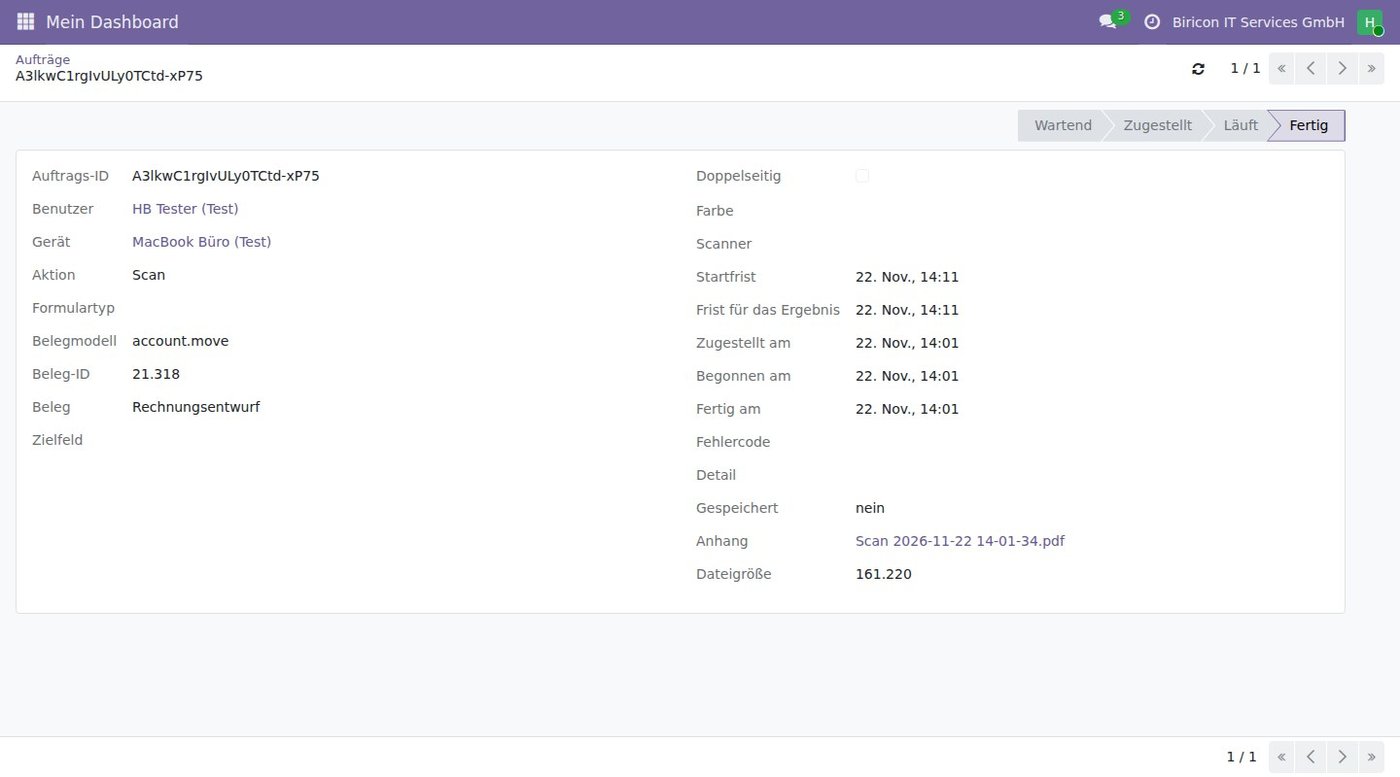
Pairing without a click: additional rules
- The local port answers only two requests (sign of life and pairing) and never gives out the pairing code.
- It only answers a page that comes from the Odoo address with which pairing is currently taking place.
- After five wrong attempts, the app closes the port for this pairing.
- On terminal servers and with several users signed in at the same time, there is no automatic method.
- After every automatic pairing, the app and Odoo show a notice.
Recommendations for companies
- Set
AllowedBaseUrlsto your own Odoo address and switch offManualServers, so that computers are only paired with your Odoo. - On shared computers, switch off
AutoPairing; pairing is then only done with a click or code. - Disconnect devices in Odoo before a computer is retired or passed on.
- Back up the key for the device secrets (chapter 02) separately from the database.
Data protection
Documents, print jobs and scans only travel between the computer and your own Odoo server. They do not pass through Biricon or any third party. The app does not send usage statistics or crash reports.
Only the licence check goes to Biricon, at start and once a day, as well as during self-activation:
| Item | Purpose |
|---|---|
| Licence ID | which licence is checked |
| Address of your Odoo server | the licence applies to this address |
| Device ID of the pairing | assignment to the pairing |
| Machine ID (derived from the hardware, irreversible, product-specific) | binding to the computer; the raw hardware value never leaves the computer |
| App version and operating system | support and compatibility |
| Random number | protection against replaying old responses |
| for self-activation, the enrolment token if applicable | authorisation for activation |
Document contents, print jobs, scans, file names, local paths or user names are never transmitted. The licence server does not store IP addresses in its database; the web server's access logs may contain them.
Note: This information describes the technology. It is not legal advice. For your privacy notice and a record of processing activities, please consult your legal adviser; Biricon provides a description of the data flows on request.
11 Troubleshooting
First steps
- Look at the icon. Green dot: the app is connected. Red X: move the mouse over the icon; the tooltip names the state of each pairing (for example "server not reachable", "disconnected – please pair again", "check this PC's clock").
- Check the device in Odoo. Under Settings → Hardware Bridge → Devices: is the device Online, when was it last seen, is it disconnected?
- Check the job in Odoo. Under Jobs you find the status, error code and detail of each job.
- Print test page / Test scan in the app menu: do the printer and scanner work independently of Odoo?
- Check the configuration with
--show-config(chapter 08): does a value unexpectedly come from a policy? - Log with Open log file; for troubleshooting, temporarily set
LogLeveltodebug.
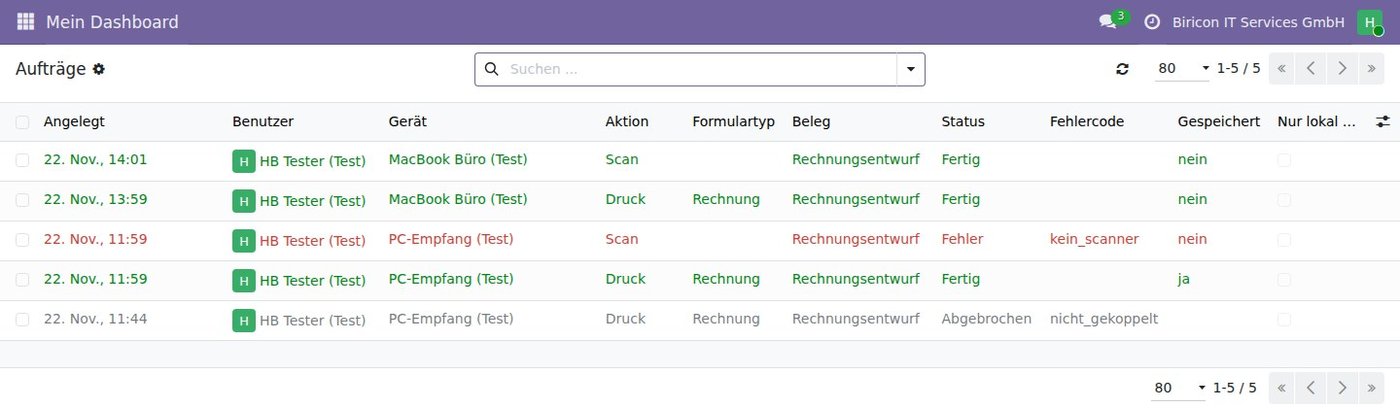
Job error codes
The app reports these codes as the result of a job. Odoo shows the text in the middle column for each.
| Code | Shown in Odoo | Meaning and remedy |
|---|---|---|
nicht_gekoppelt | The job failed. | The app is not (or no longer) paired for this server. Pair again (chapter 04). |
lizenz_fehlt | No licence for the hardware bridge. | No valid licence for this Odoo address (chapter 09). |
lizenz_abgelaufen | The hardware bridge licence has expired. | Request a renewal. |
lizenz_grenze | Too many devices for the hardware bridge licence. | Release a seat or extend the quota. |
lizenz_server_nicht_erreichbar | The licence server is not reachable. | Check the connection to https://www.biricon.eu (proxy, firewall). |
lizenz_pruefung_fehlt | The licence could not be checked for too long. | Grace period of five days is over; establish a connection to the licence server. |
zeit | The job failed. | The computer's clock deviates too much; the app shows "check this PC's clock". Correct the time and time zone. |
kein_drucker | No printer on this computer. | Set up a printer in the operating system. |
drucker_fehlt | The assigned printer does not exist on this computer. | Compare the printer name exactly (chapter 05). |
drucker_offline | The printer is offline. | Switch on the printer, check the connection. |
pdf_ungueltig | The document could not be printed (invalid PDF). | Check the report in the browser. |
speichern_fehlt | The PDF could not be saved (folder missing or not writable). | Check the folder, write permissions, network drive and path length. |
datentraeger_voll | The disk is full. | Free up space. |
kein_scanner | No supported scanner on this computer. | Switch on the scanner; check the driver (WIA or macOS). |
scanner_belegt | The scanner is busy. | Close other scanning programs. |
scanner_fehler | Scanner error. | Restart the scanner, check for a paper jam. |
papier_fehlt | No paper. | Insert paper. |
abgebrochen | Cancelled. | The job was cancelled in Odoo. |
abgelaufen | Bridge not reachable | The app did not collect the job in time (print: two minutes) or did not complete it (scan: ten minutes). Is the app running? |
zu_gross | The scan is too large (more than 25 MB). | Fewer pages or greyscale. |
intern | The job failed. | Unexpected error; send the app log and the job detail to support. |
For each error the app can report a detail, for example "path too long". It never contains document contents.
Odoo messages when creating a job
| Display | Meaning |
|---|---|
| Bridge not reachable | The device has not been online for more than about one minute. Odoo opens the normal browser print. |
| Please choose a device first. | You have several devices and have not chosen a workplace. |
| You cannot use this device. | The device belongs to another user and has not been shared with you. |
| You are not allowed to access this document. | You do not have the right to access the document. |
| The document does not exist (anymore). | The document has been deleted. |
| This form type cannot be printed directly. | No report is assigned to the form type. |
| Too many jobs for this device. Please wait a minute. | More than 60 jobs in one minute. |
| Session expired. Please reload the page. | The Odoo session has expired. |
App sign-in to Odoo
If Odoo rejects a request from the app, the app shows the state in the icon:
| Cause | App display | Remedy |
|---|---|---|
| Clock deviates by more than two minutes | check this PC's clock / check this Mac's clock | The app compensates for the deviation once by itself. If the message remains, correct the time and time zone. |
| Device disconnected in Odoo | disconnected – please pair again | Pair again (chapter 04). |
| Signature or nonce invalid | Connection error in the tooltip | If this happens repeatedly, a proxy may be altering the requests. Set up a proxy exception for the Odoo address; otherwise contact support. |
Licence messages
The licence messages and what to do about them are described in chapter 09. On a computer change, the app always shows:
| Language | Text |
|---|---|
| German | „Die Lizenz ist an einen anderen Rechner gebunden. Bitte erneuern Sie die Lizenz bei Biricon.“ |
| English | “The licence is bound to a different computer. Please renew the licence with Biricon.” |
Below it is the machine ID with Copy. Send it to it@biricon.eu.
Common cases
The "Direct print" button is greyed out. None of your devices is online. Is the app running? Is it paired with this Odoo? Is the right device chosen as This Workplace?
Printing happens on the wrong printer. Check the order of precedence in chapter 05: a locally set printer (app, registry, profile) takes precedence over Printer per Device, which takes precedence over Printers per Form Type.
Pairing without a click never works. In Safari this is normal; there, pairing is always done with a click. In Chrome or Edge, check whether local network access was declined for the Odoo address (site settings), whether AutoPairing is switched off or whether it is a terminal server.
The scan does not arrive in Odoo, but there is no error either. Is Save locally only switched on? Then the scan is in the chosen folder and Odoo shows "Scan only saved locally, not uploaded."
After moving Odoo to a new server, all devices report "disconnected". The key for the device secrets was not moved along (chapter 02). Pair all devices again.
What to send to support
- the text from About → Copy licence (contains no secret),
- the code and detail of the job from Odoo,
- the app log file (contains no document contents),
- the output of
--show-config.
Contact: it@biricon.eu, phone AT +43 1 960 80 30, DE +49 30 800 982 860, UK +44 5603 87 10 36.
12 New in protocol 2.3: queue, print options, labels, scan preview and text recognition
Status: 29 November 2026. This chapter describes features that arrive with the Odoo module from version 19.0.1.9.1 and the new app releases (macOS 1.1.3, Windows 0.9.15). The "Status" notes in the table say honestly what is delivered today and what still follows. All server-side features are switched off as delivered; an administrator switches them on one by one (Settings → Technical → System parameters, key
biricon_hardware_bridge.<name>, value1). An app that cannot do a feature simply does not notice it.
Overview: what applies where
| Feature | Server switch | macOS 1.1.3 | Windows | Note |
|---|---|---|---|---|
| Queue (jobs wait up to 14 days, retry on printer errors) | queue | yes | from 0.9.15 | Protection against double printing through the job number and a local journal in the app |
| Print options: tray, size, orientation, scaling | – | yes (A4, A5, A6, Letter) | from 0.9.15 | Tray and size are not yet verified on every real printer |
| Label printing (ZPL, ESC/POS) from label templates | rohdruck | ZPL | from 0.9.15 (ZPL, ESC/POS) | Not yet verified on a real label printer |
| Print rules (document and condition decide printer, tray, copies) | regeln | – (server side) | – (server side) | New rules start as a dry run |
| Print station (computer without a signed-in user, as a service) | stationen | not included (planned) | from 0.9.15, separate installation package | One computer uses one licence seat |
| Scan preview: reorder, rotate, delete pages before sending | – | yes | from 0.9.15 | Not on terminal servers on Windows |
| Edit pages afterwards in Odoo | scan_bearbeiten | – | – | In the Odoo scan inbox |
| Searchable PDF (text recognition on the computer) | – | yes (Apple Vision) | from 0.9.15 (Windows text recognition) | Server-side text recognition only if ocrmypdf and Tesseract are installed (ocr) |
| Recognise delivery notes and compare with the goods receipt | add-on module | not included | not included | The "Odoo Scan" app for Android can submit delivery notes |
| AI recognition in the inbox | posteingang_ki, ki_warteschlange | – | – | Option, off by default; only with an AI module installed |
Windows 0.9.14 is the version made available at the moment. The Windows features marked "from 0.9.15" are in the source code but not yet delivered as an installer.
Queue and protection against double printing
A job with a validity period (for example from a print rule) stays waiting for up to 14 days, even when the computer is off. If the printer reports "offline", "out of paper" or "tray missing", Odoo Print & Scan retries after 1, 2, 4 … minutes (at most 1 hour apart, at most 3 attempts, never beyond the validity period). Every step is in the job's journal (time, state, error code, never the content of the document). The same job number on the same device never creates a second job. The app also keeps a local job journal: a known job is never printed again, not even after a crash or a repeated delivery.
Print options
A job can specify tray, size (A4, A5, Letter, or width × height in millimetres), orientation (automatic, portrait, landscape) and scaling (fit or original size). The app reports for each printer which trays and sizes it knows. If something does not fit, it reports papierfach_fehlt or format_fehlt and does not print.
Label printing (ZPL, ESC/POS)
Hardware Bridge → Label templates: text in the printer language with placeholders (field values of the document in double curly braces), for example ^XA^FO50,50^A0N,40,40^FD<Text>^FS^XZ. "Try on record" shows the result without printing. Standard sizes are 100×150, 100×100, 100×50, 76×51, 62×29, 57×32, 50×25 and 40×30 mm. The server and the apps block dangerous commands that would reconfigure the printer or store files on it (for example ^JU, ^ID, ^CC, ~DY); field text stays free. Note: the interaction with a real label printer has not been verified for every printer type; test one label before using it in production.
Print rules
Hardware Bridge → Print rules. A new rule is switched off and a dry run: it only writes to the log what it would have printed. Only "Print for real" lets it create real jobs. Triggers are by hand (the user prints as usual, the rule decides printer, tray and copies), invoice posted and call from an automated action. At most one print per document and rule. The condition is an Odoo domain; it is only read, never executed.
Print station
Hardware Bridge → Print stations: a paired computer in service mode with its printers under a name the rules choose (for example "Label warehouse"). The Windows print station runs as a Windows service without a signed-in user and is set up by IT with an installation package carrying the Odoo address and a rollout key. It does not exist for macOS yet.
Scan preview and searchable PDF
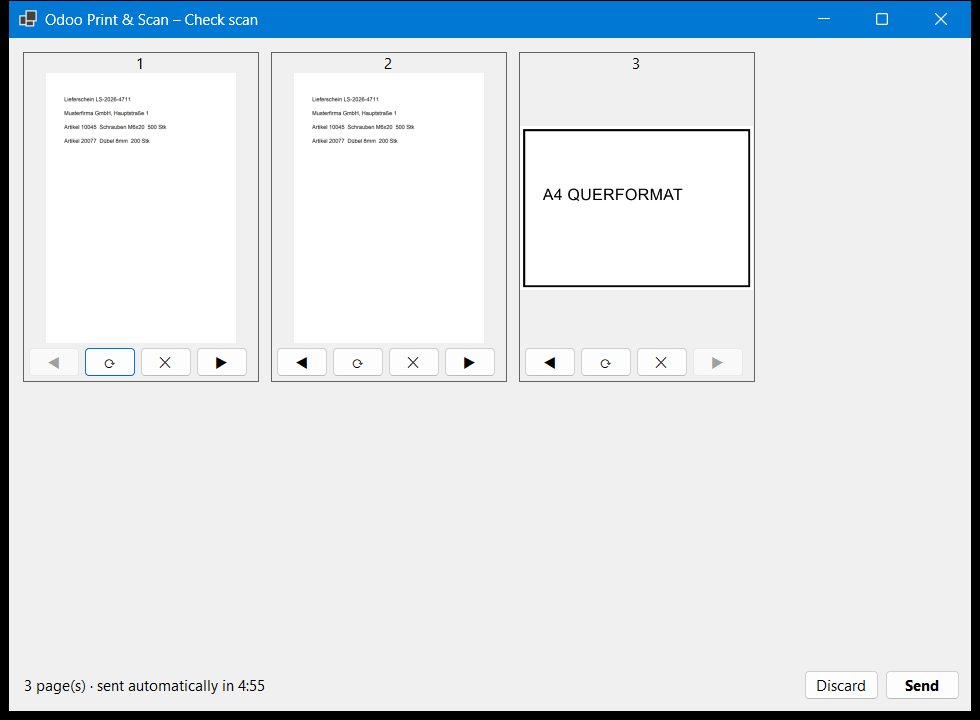
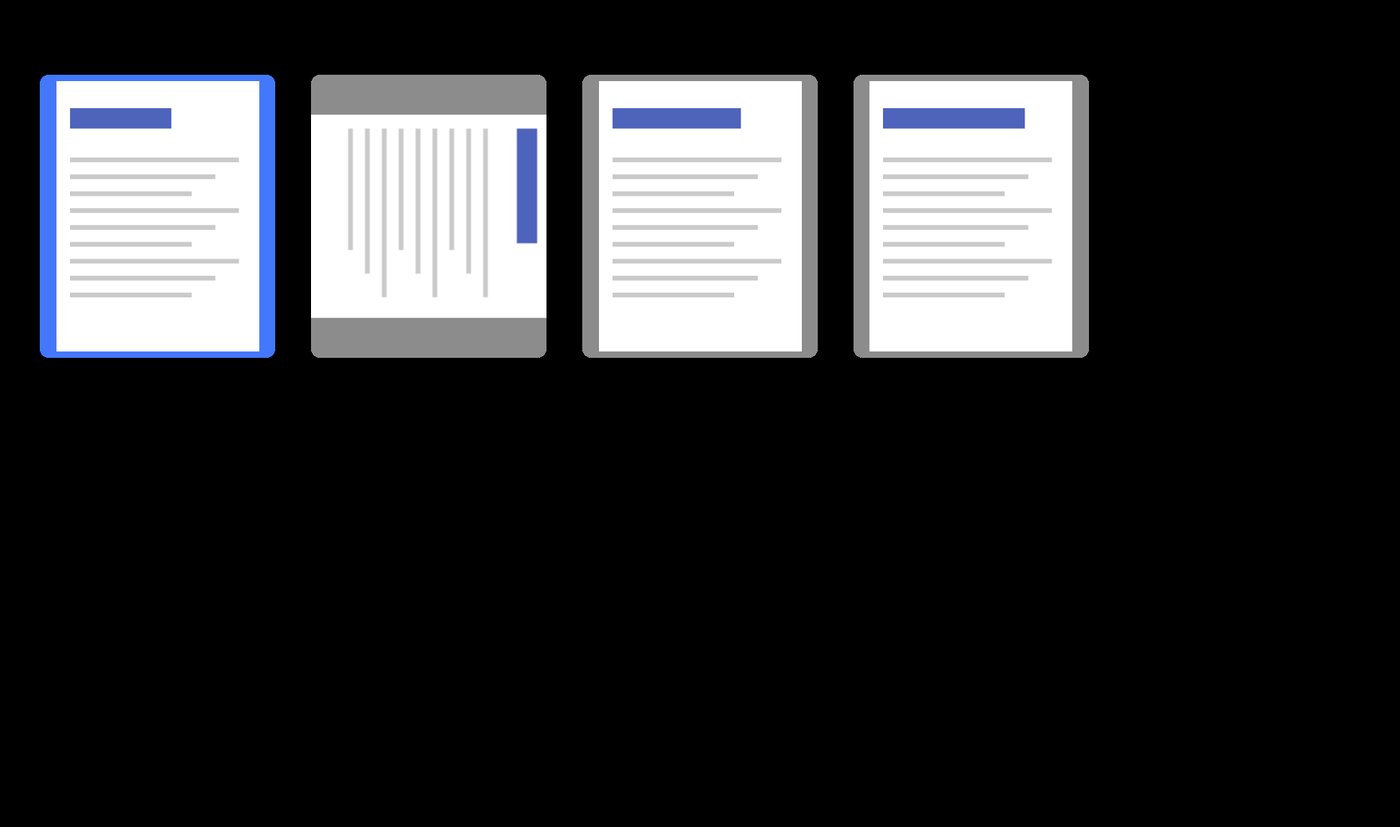
After the scan the app shows all pages. You can change the order, rotate pages by 90° and delete them. "Send" transfers the scan to Odoo, "Discard" cancels; on discard, when the window is closed, or after a waiting time without input the scan is either sent unchanged (Windows, 5 minutes) or nothing is uploaded (macOS, 8 minutes). Text recognition runs on your own computer; the recognised text is added invisibly to the PDF so you can search for it in Odoo. If recognition fails, a normal PDF is sent. On Windows both can be switched off by group policy (Scan\Preview, Scan\Ocr).
Editing pages afterwards in Odoo
Scan inbox → entry → "Edit pages": order by handle, "Rotate", "Delete", then "Apply". Posted invoices keep their file. The file is only replaced if it has not changed since you opened it.
Delivery note and AI recognition (option)
A scanned delivery note can be compared with the open goods receipt: the add-on module shows "recognised" against "expected" and marks differences. Items are matched by EAN, article number and similar description; ambiguous matches are marked and never guessed. Transfer happens only through a confirmed button, the goods receipt is never validated automatically, and nothing goes to suppliers. Automatic recognition by AI is an option that is off by default; it runs in a queue in the background and needs an installed AI module. Personal data goes to the configured AI service in that case; a notice text and a "confidential" switch per document are provided for this.
Scan apps for Android and iOS
The "Odoo Scan" apps for Android and iOS are free for the Odoo community. They obtain a free licence on first start; for that the app sends a random device ID and the app version to Biricon's licence server (to count installations). Document contents only go to your own Odoo. The apps are not yet available in the stores.
13 Outlook: version 3
Status: Version 3 is in development. Several components are built, but not yet in productive use. This chapter describes the planned functions; scope and order may still change. There are no commitments to dates.
Principles
- Compatible: Older apps continue to work unchanged with a version 3 server, and new apps with older servers. New functions are negotiated between app and server and only apply if both sides support them.
- Same security model: Still no paths, folders, network addresses or commands from the server, no local port in normal operation, signed requests. In addition, Odoo signs its responses to the app, so that a proxy cannot alter them unnoticed.
- Never print twice: Better "result unclear, please check" than a second printout.
- No silent fallback printer: Falling back only within explicitly set-up printer pools, and always with a message.
Planned functions
Printing
- Print rules instead of only "printer per form type": by user, team, company, warehouse or location, operation type and report, with order of precedence, exceptions per record and a simulator "Why does it print there?".
- Automatic printing on events, for example when confirming a delivery, posting an invoice or sending an invoice by e-mail, as well as printing from automations without an open browser.
- Print stations, locations and printer pools: A user on a tablet prints on the printer at their location; a pool falls back to another printer in case of failure.
- Operation without a signed-in user (Windows service, on the Mac a background service) for print stations.
- Batches and bulk printing: several documents in one job, selected documents from lists, attachments from the chatter.
- Queue for automatic jobs during short network outages instead of expiry.
- Direct print in the print menu of every report, with the prompt "Where to print?" and a preview.
- Print options: paper tray, format, orientation, scaling, page range.
- Network printers without a driver (IPP, RAW) and labels in the ZPL printer format.
Scanning
- Scan as draft with thumbnails: rotate, crop, reorder and delete pages, add further pages, and only then accept.
- Scan buttons in fields, in the chatter and when entering vendor bills.
- Network scanners without a driver (eSCL/AirScan).
- Later: scan profiles, image enhancement and text recognition (in the app, not on the server), splitting batches by barcode.
Operation
- Print journal without document contents; reports per user are off by default.
- Diagnostics and help with errors directly in the app.
- Linux and Raspberry Pi agent for print and scan stations, for example in the warehouse.
Odoo Online and Odoo.sh
Version 3 also requires its own Odoo module. This is not possible on Odoo Online. On Odoo.sh it can be used, on small plans with an adjusted polling interval. On your own servers there is no restriction.
Note on reports
Reports on who prints or scans how much can count as monitoring of performance and behaviour and then require the co-determination of the works council in Austria and Germany. This is why they are switched off by default. This note is not legal advice.
How it helps in practice: an example (planned)
In the warehouse of "Muster Elektro Handels GmbH", every confirmed delivery slip is in future to be printed automatically on the packing station printer, even if the warehouse worker confirms the delivery on a tablet. With version 3, a print rule "Delivery slip, Warehouse North → Pool Packing Station" and automatic printing on confirmation will be set up for this; the station runs as a service without a signed-in user. Until then, the warehouse worker prints with one click on Direct print.